
Getting started
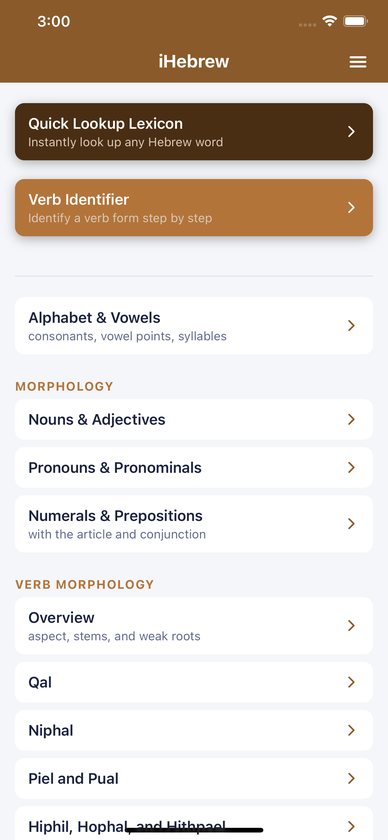
- Open iHebrew. It starts on the Home screen.
- At the top are two highlighted cards: Quick Lookup Lexicon and Verb Identifier.
- Below them are the grammar pages, grouped under Morphology, Verb Morphology, Syntax, Reference and Media. Tap any item to open it.
- Use the back arrow at the top left, or swipe in from the left edge on iPhone, to go back.
Everything except the songs works without an internet connection.
The menu
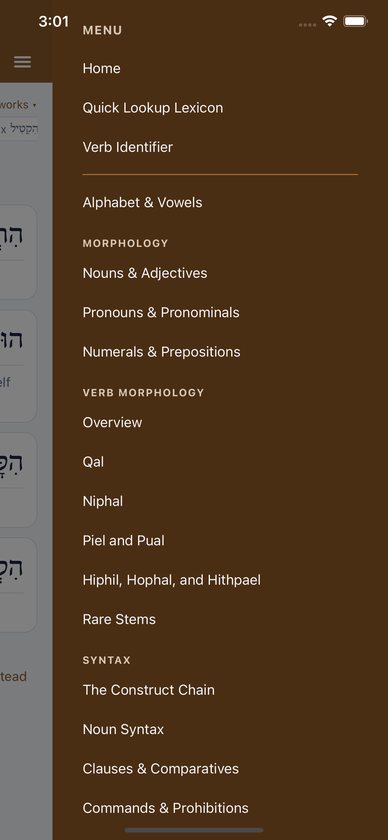
Tap the menu icon (three lines) at the top right. The menu opens from the right and lists:
- Home, Quick Lookup Lexicon and Verb Identifier;
- Alphabet & Vowels;
- Morphology: Nouns & Adjectives; Pronouns & Pronominals; Numerals & Prepositions;
- Verb Morphology: Overview; Qal; Niphal; Piel and Pual; Hiphil, Hophal, and Hithpael; Rare Stems;
- Syntax: The Construct Chain; Noun Syntax; Clauses & Comparatives; Commands & Prohibitions; Participles; Infinitives; The Perfect in Use; Narrative & Vav-Consecutive; Particles (אֲשֶׁר and הִנֵּה); Hebrew Poetry;
- Reference: Paradigm Charts; Full Glossary, which you can expand to show the letters א to ת;
- Media: Songs for Learning Biblical Hebrew;
- Appearance, at the bottom.
Grammar pages
- Alphabet & Vowels. The alphabet, vowel points, syllables, sheva and dagesh.
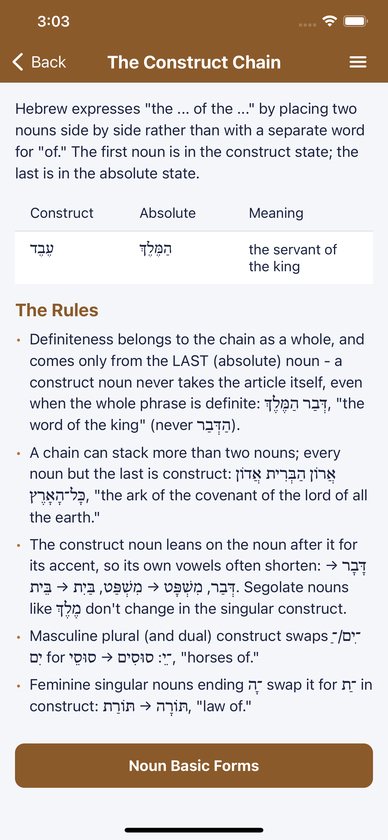
- Nouns & Adjectives. Sub-pages on basic noun forms (singular and plural, the dual, possessive suffixes on סוּס) and on segolate nouns (singular and plural patterns, suffixed forms, the construct state).
- Pronouns & Pronominals. Personal, interrogative, demonstrative and relative (אֲשֶׁר) pronouns, and pronominal suffixes on nouns and prepositions.
- Numerals & Prepositions. The definite article, vav conjunction, prepositions, the numbers 1 to 10, and הִנֵּה.
- Overview. Perfect and imperfect, the seven common stems, weak roots, and a link to the paradigm charts.
- Stem pages (Qal, Niphal, Piel and Pual, Hiphil, Hophal and Hithpael). How to recognize each stem, with links to its weak-root charts.
- Rare Stems. Polel, Polal and Hitpolel; Pilpel; Hishtaphel. This page describes them in prose and has no charts.
Some pages have buttons that jump to the matching song. The Qal chart, for example, links to the Perfect Verbs and Imperfect Verbs songs.
Paradigm charts
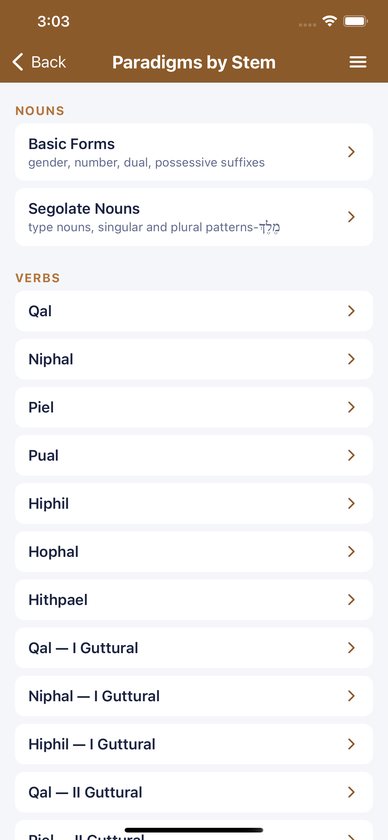
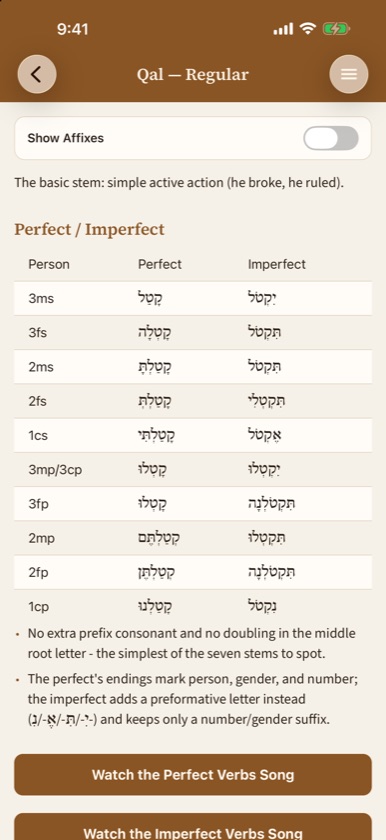
Open Paradigm Charts from the menu or from the Overview page, then choose:
- Browse by Stem. The noun charts (basic forms and segolates), the regular verb in each of the seven stems, then each weak-root chart.
- Browse by Weak Root. I-Guttural, II-Guttural, I-Nun, I-Yod (Yod), I-Yod (Vav), III-He, III-Aleph, Hollow and Geminate, each listing the stems that have a chart.
Each verb chart has three tables: perfect and imperfect; imperative and participle; and jussive, vav-relative, cohortative and infinitives. The charts follow the paradigm appendix in Mark Futato’s Beginning Biblical Hebrew, which gives each weak root only in the stems where it makes a difference. “XXX” in a cell means the form is unattested for that pattern.
Show Affixes
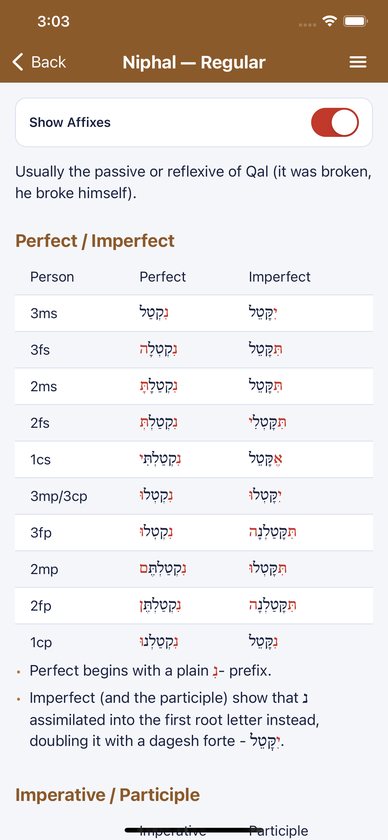
Paradigm charts and the morphology and stem pages have a Show Affixes switch at the top. Turn it on and the prefixes, suffixes and other affixes turn red, so the root stands out. In נִקְטַלְתֶּם, for example, the נִ prefix and the תֶּם ending turn red and קטל is left plain.
The setting applies everywhere at once and is remembered after you close the app.
Zooming
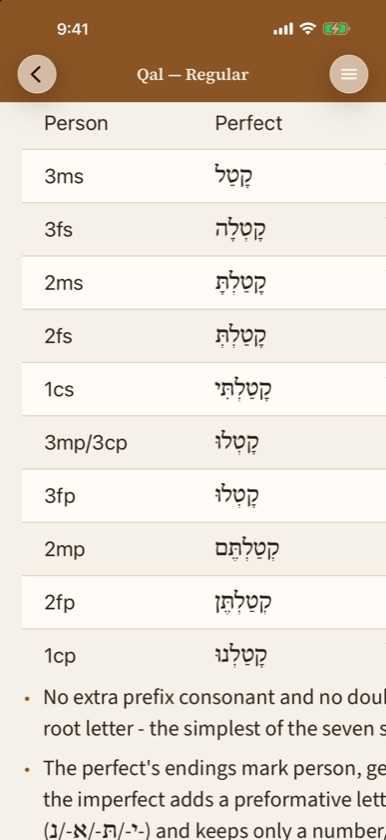
On iPhone and iPad you can pinch to zoom pages and charts, up to 3×. Wide tables also scroll sideways.
Quick Lookup Lexicon
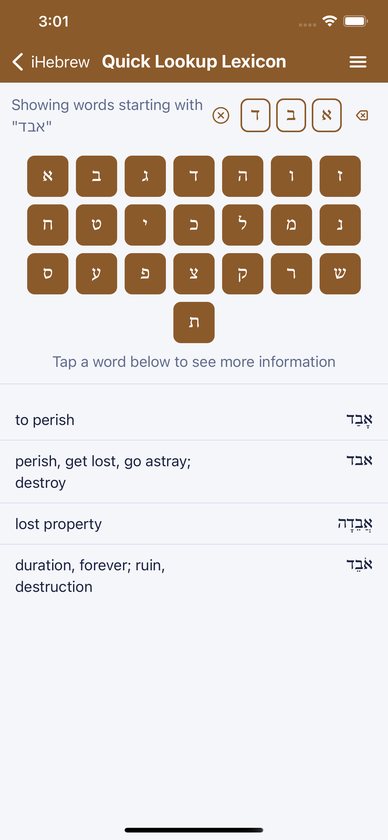
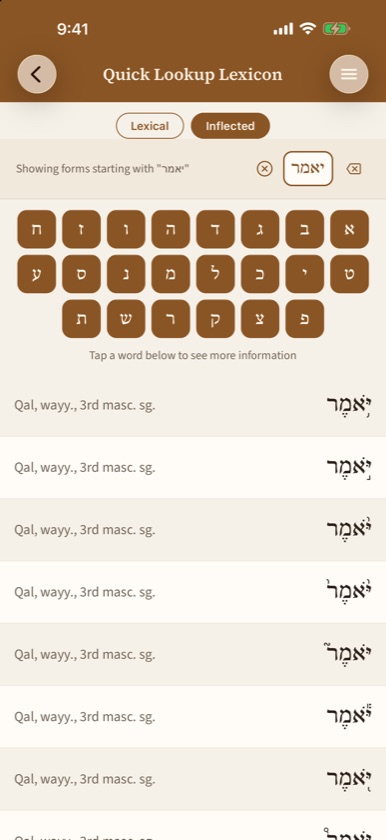
Choose Lexical or Inflected at the top.
- Lexical. Tap the consonants of a dictionary form. Matching glossary words appear as you type, with the meaning on the left and the Hebrew on the right. Tap one to open its word card.
- Inflected. Tap the consonants of a word as it appears in the text. Matching forms appear with a short parsing, such as “Qal, perf., 3rd masc. sg.” Tap one to go to its dictionary entry. If a form could belong to more than one word, the row says how many, and tapping it asks Which word is this? so you can pick.
Keyboard tips:
- The keyboard has the 22 consonants, laid out right to left. Vowel points and accents are ignored.
- There are no keys for final forms. Tap כ מ נ פ צ and they match ך ם ן ף ץ.
- Your letters appear in the box at the top right. The backspace icon deletes a letter and the circled ✕ clears the box. Switching between Lexical and Inflected also clears it.
In Inflected mode, leave off attached prefixes such as ו, ב, כ, ל, מ and שֶׁ. The text iHebrew draws on treats them as separate words, so לְמֶלֶךְ won’t match. Type מלך instead.
If two dictionary words share the same consonants, you’ll be asked which one you mean. If a form’s lemma isn’t in the glossary, you’ll see “This word isn’t in the glossary yet.”
Word cards
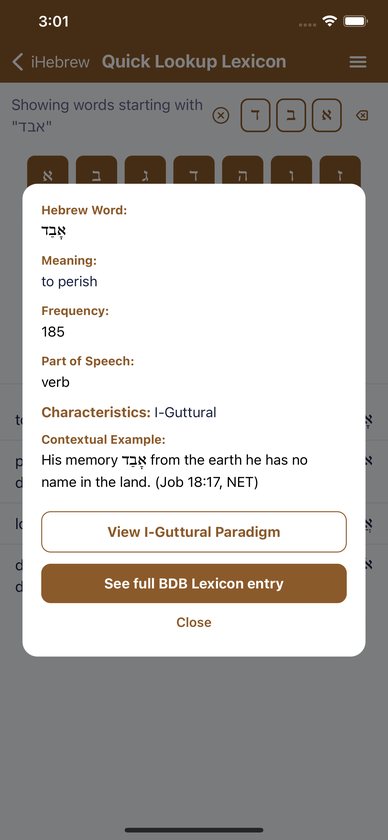
A word card shows:
- the word in Hebrew and its meaning;
- its frequency and part of speech;
- Characteristics for verbs with weak roots, such as I-Nun or II-Guttural;
- an example verse from the NET Bible with its reference;
- View … Paradigm buttons that open the matching chart, for example View I-Guttural Paradigm;
- See full BDB Lexicon entry, when iHebrew has the BDB entry.
Tap Close, or tap outside the card, to dismiss it.
Full BDB entries
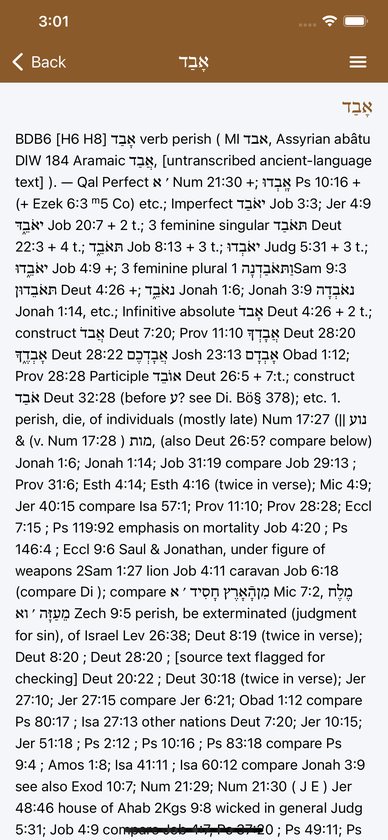
The BDB screen shows the headword and the full Brown-Driver-Briggs entry, broken into its numbered senses, with the source credits at the bottom.
Verb Identifier
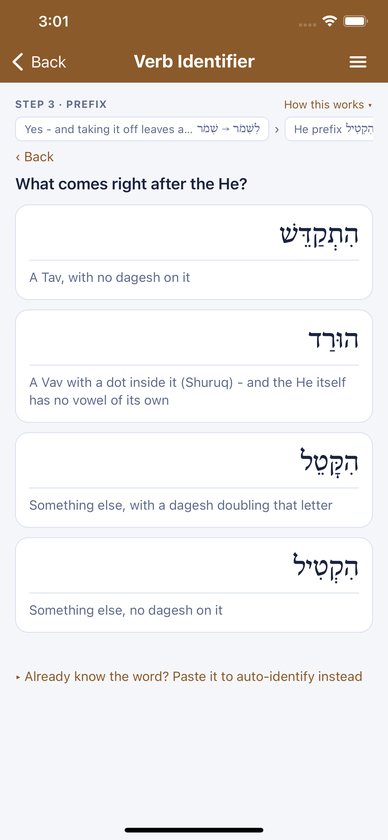
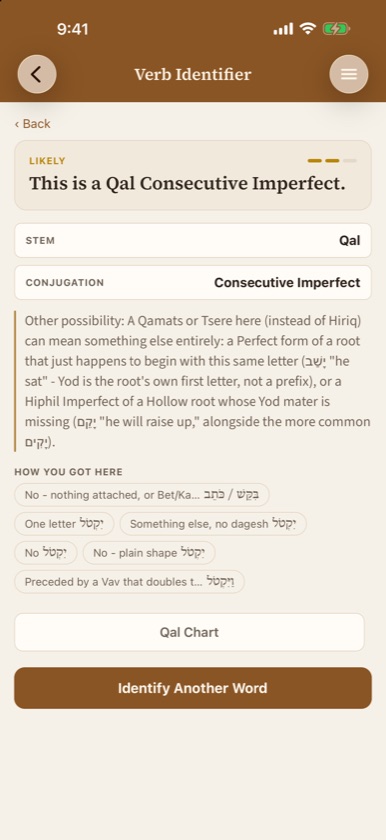
Open it from Home or the menu, with the pointed form of your verb in front of you.
- Each screen shows the step number and what it’s checking: preposition, prefix, doubling or vowel. Tap How this works for a short explanation.
- Answer each question by tapping the choice that matches your word. Every choice shows a Hebrew example.
- The first question asks whether the word begins with an attached preposition (ב, כ, ל). Then it asks what the word begins with: Mem, He, Nun, a preformative (א, י, ת, נ), no prefix, or a rare-stem pattern. After that come dagesh and vowels.
- Your answers build up as a trail of chips at the top. Tap a chip to jump back to that step, or tap ‹ Back.
- If you land on an imperfect, you’ll be asked whether it’s a plain imperfect, a cohortative, a vav-consecutive (wayyiqtol) or a jussive.
- If you like, mark any weak-root features you can see: gutturals, III-He, III-Aleph, hollow, geminate or I-Yod. This doesn’t change the answer, but it marks the answer as less certain.
- Tap Show Result. You’ll see the verdict, such as “This is a Piel Participle.”, “This is likely a …” or “This could be a …”, with confidence dots for certain, likely or ambiguous. Below that are the stem, the conjugation, any weak features, a “How you got here” summary and buttons to the matching paradigm charts.
- Tap Identify Another Word to start over.
The Verb Identifier gives you the stem and conjugation. For person, gender and number, read them off the paradigm chart it links to, or look the form up in Inflected mode.
Full glossary
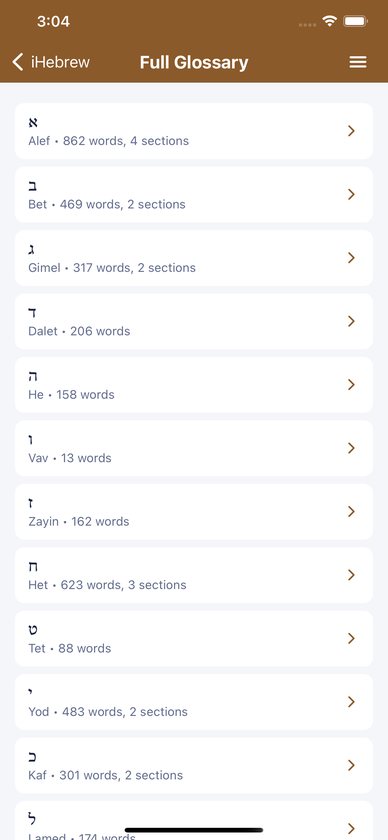
Open Full Glossary in the menu and choose a letter. Larger letters are split into sections, such as א–או. Tap any row to open its word card.
Songs
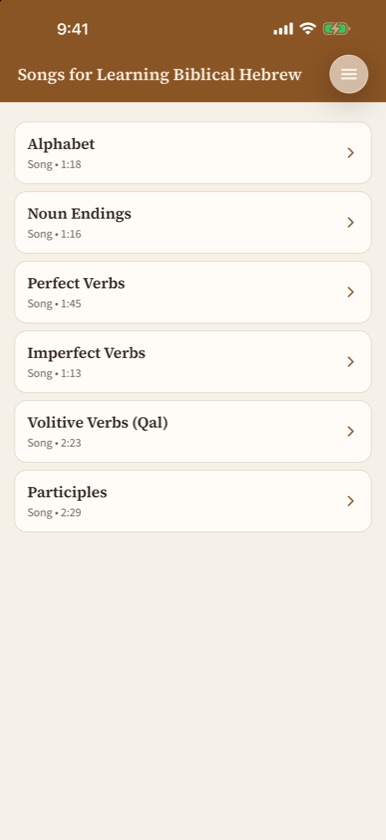
Songs for Learning Biblical Hebrew has 6 videos: Alphabet, Noun Endings, Perfect Verbs, Imperfect Verbs, Volitive Verbs (Qal) and Participles. They play inside the app from YouTube and need an internet connection. To watch fullscreen, use the player’s fullscreen button.
Appearance
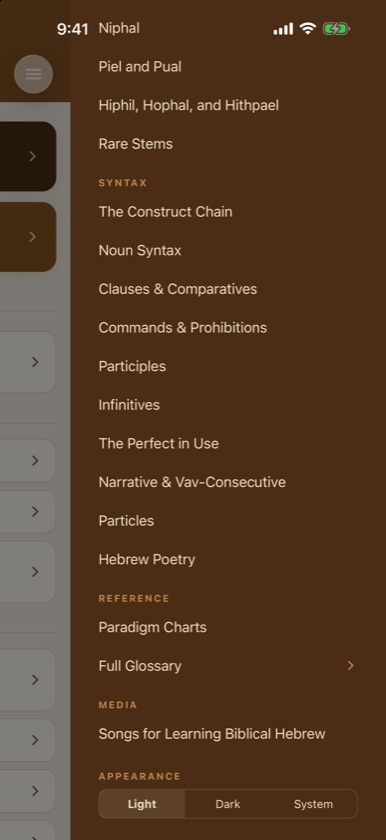
At the bottom of the menu, choose Light, Dark or System, which follows your device’s setting. Your choice is remembered.
Buying and installing
iHebrew is a one-time purchase. There are no in-app purchases, no subscription and no account, so there’s nothing to restore. To install it on another device, download it again while signed in with the same Apple ID or Google account. You won’t be charged twice.
Common questions
Do I need to type vowel points?
No. Tap consonants only. Points and accents are ignored.
Where are the final letters?
There are no separate keys. The regular letter matches the final form.
Why doesn’t the word in my Bible show up in Inflected mode?
It probably has a prefix attached, such as ו, ב, כ, ל, מ, הַ or שֶׁ. Leave it off and try again.
What’s the difference between Lexical and Inflected?
Lexical searches dictionary forms, like מֶלֶךְ or שָׁמַר. Inflected searches the forms printed in the text, like יִשְׁמְרוּ, and takes you to their dictionary form.
Why am I asked “Which word is this?”
The form, or its consonants, fit more than one dictionary word. Choose the one that fits your context.
Can the Verb Identifier parse any verb?
It identifies the stem and conjugation from what you can see. Weak roots and some shapes can be read more than one way, so it tells you how sure it is. Check the chart it links to.
Why doesn’t the Verb Identifier link to a chart for Polel or Hishtaphel?
Futato’s appendix has no charts for the rare stems. The Rare Stems page explains them instead.
Which textbook do the paradigms follow?
Mark Futato’s Beginning Biblical Hebrew. The forms use קטל and the standard paradigm roots, so they work alongside any introductory grammar.
What does “XXX” in a chart mean?
That form is unattested for that pattern and stem.
What does Show Affixes do?
It colors prefixes and suffixes red so you can see the root. It stays on until you turn it off.
Does iHebrew have a dark mode?
Yes. Open the menu and choose Dark under Appearance.
Is every word in the Hebrew Bible here?
The glossary has about 8,500 entries, and over 7,500 of them have full BDB entries.
Does iHebrew collect my data?
No. There are no accounts, analytics, crash reports or ads, and your two display settings stay on your device. The songs stream from YouTube when you play them, as the privacy policy explains.
Troubleshooting
- No matches while typing. Delete back to fewer letters, leave off prefixes in Inflected mode, and check you’re in the right mode.
- A video won’t play. Check your internet connection and reopen the page.
- The red letters won’t go away. Turn off Show Affixes on any chart or morphology page.
- The text is hard to read at night. Switch Appearance to Dark.
- A page is zoomed in on iPhone. Pinch out to return to normal size.
- iHebrew doesn’t show up on my new device. Open the App Store or Google Play while signed in with the account you bought it with, and download it again from your purchase history.
Still stuck?
Email support@alephtoomega.com with "iHebrew" in the subject. It helps to include your device model, its iOS or Android version, and what you were doing when the problem happened.