
Getting started
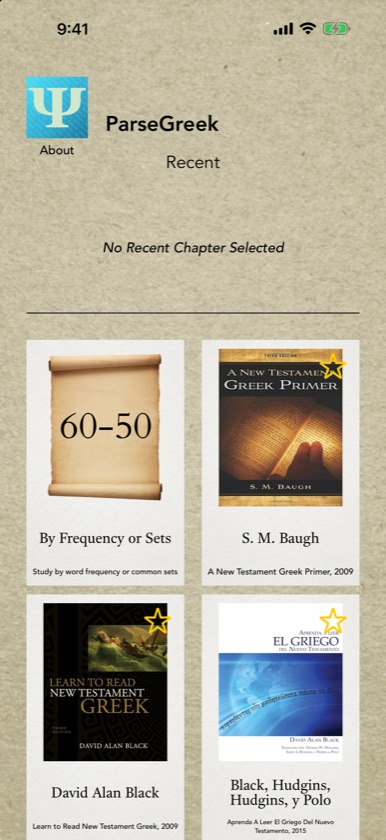
- Open ParseGreek. After the splash screen you land on the home screen.
- Choose how you want to pick words:
- By Frequency or Sets, the first tile, to study by how often words occur in the New Testament or by a ready-made set.
- A textbook tile (Baugh, Black, Burling, Campbell, Croy, Duff, Harris, Mounce and the rest) if you’re working through an introductory grammar.
- Make your selection and tap NEXT.
- Adjust the quiz settings if you like, then tap NEXT again to start.
Everything works offline. There’s no account and nothing to sign in to.
Choosing an edition
- ParseGreek is the full app. It’s a one-time purchase with no in-app purchases, subscription or ads.
- ParseGreek LITE is free. It has the same textbooks and quiz types, but it stops after a limited number of practice cards and shows the Unlock ParseGreek screen. A one-time in-app purchase inside LITE removes the limit.
If you’re not sure whether ParseGreek suits your course, start with LITE. If you already know you want it, buy ParseGreek. The two are separate apps, so unlocking LITE doesn’t give you ParseGreek, and buying ParseGreek doesn’t unlock LITE.
The home screen
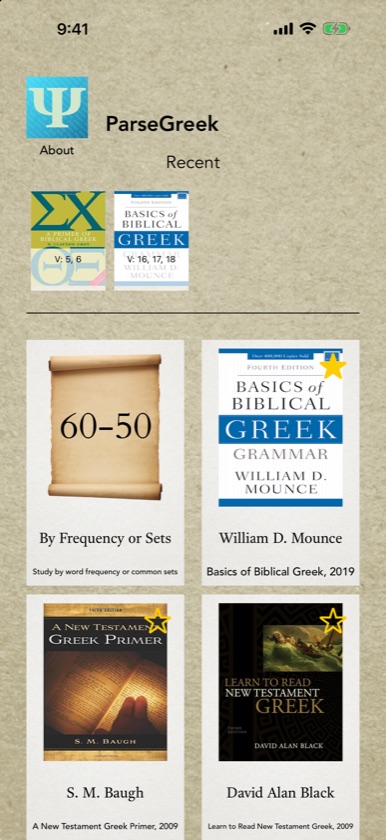
- Recent shows your last four quiz setups as small covers, each with a short summary such as “V: 4, 6 / Gram: 6” (vocabulary chapters 4 and 6, grammar chapter 6) or “Freq: 50–30x”. Tap one to rebuild that selection and go straight to the settings screen.
- Textbook tiles show the author, title and year of each grammar. Tap the star on a tile to pin that textbook to the top of the list, and tap it again to unpin it. Stars are remembered between launches.
Studying with your textbook
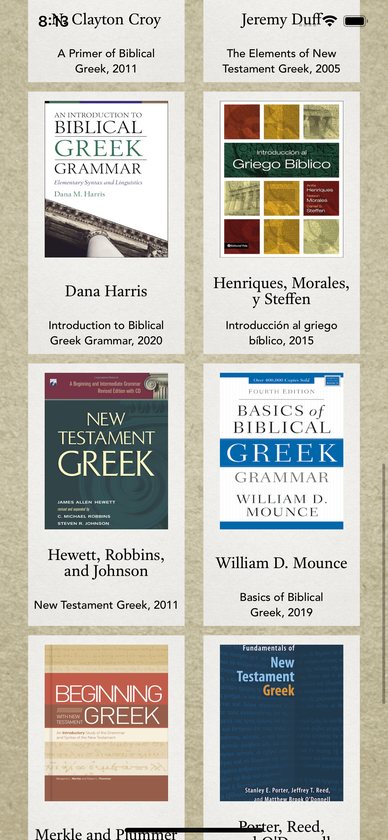
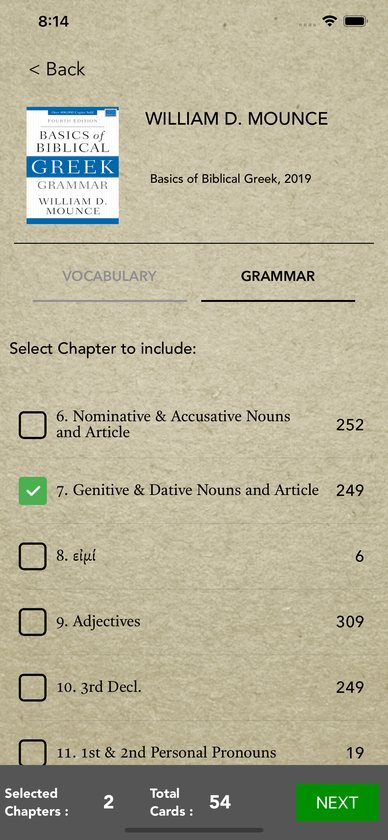
Tap your textbook’s tile. You’ll see two tabs.
- VOCABULARY is a grid of chapter numbers, each with the number of cards in it. Tap the chapters whose vocabulary you’ve learned. Selected chapters turn green.
- GRAMMAR lists the textbook’s grammar lessons by chapter, for example “3. 2nd Decl. Nouns”. Tap the lessons you’ve covered.
How the two tabs combine:
- Vocabulary only gives you every form of the words in those chapters.
- Grammar only gives you every form that belongs to those lessons, from any vocabulary.
- Both gives you only the forms that are in your vocabulary chapters and your grammar lessons. This is the usual way to use it. Mounce vocabulary from chapters 4 and 6 plus grammar chapter 6, for example, gives you nominative and accusative first and second declension forms of those words, and nothing else.
The counters at the bottom show how many chapters you’ve selected and how many forms are in the quiz. Select at least one chapter, then tap NEXT.
Studying by frequency or sets
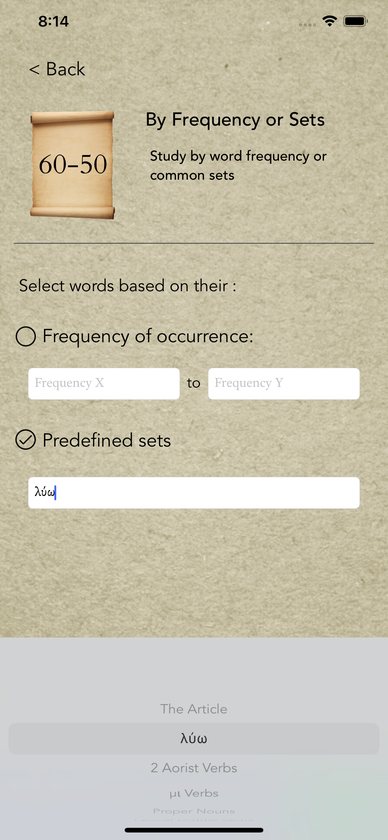
On the By Frequency or Sets screen, choose one of two options.
- Frequency of occurrence. Tap the two boxes and use the wheels to choose a range, for example 50 to 30. You’ll get the words that occur that many times in the New Testament. To study a single frequency, pick the same number in both boxes. The order doesn’t matter.
- Predefined sets. Tap the box and choose The Article, λύω, 2 Aorist Verbs, μι Verbs, Proper Nouns, Lexical Middle Verbs, Contract Verbs, Numbers, or Comparative & Superlative.
The λύω set contains every form of λύω, including forms the New Testament doesn’t use, because it’s the model verb in most grammars. The other sets contain forms as they occur in the New Testament.
The counter at the bottom shows how many forms your choice includes. Tap NEXT to go to the settings screen.
Quiz settings
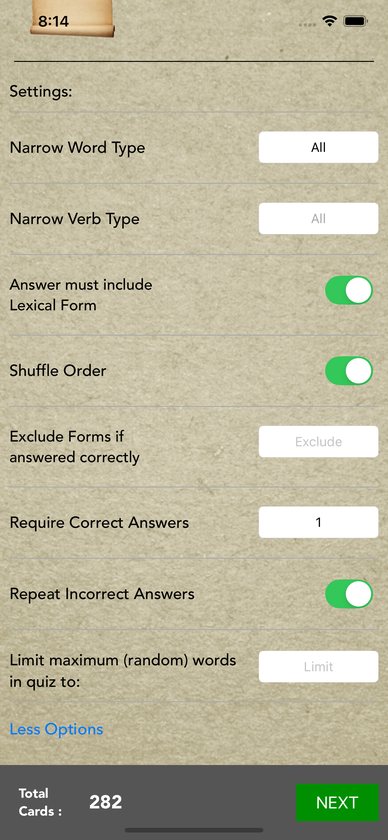
The settings screen shows your selection at the top and the number of forms at the bottom. The count updates as you change options.
- Narrow Word Type: All, Nouns, Adjectives, Pronouns, Verbs or Participles.
- Narrow Verb Type: All, Indicatives, Subjunctives, Imperatives, Infinitives or Optatives. This is only available when Word Type is set to Verbs.
- Answer must include Lexical Form adds a last step where you pick the lexical form from a short list.
- Shuffle Order puts the forms in random order.
Tap More Options for these:
- Exclude Forms if answered correctly. Type a number. Any form you’ve answered correctly at least that many times, across all your past quizzes, is left out. Leave it blank to include everything.
- Require Correct Answers: 1, 2 or 3. Each form goes into the quiz that many times, so 2 doubles the length of the quiz.
- Repeat Incorrect Answers. A form you get wrong is added again at the end of the quiz.
- Limit maximum (random) words in quiz to. Type a number to cap the quiz length. The cap takes the first forms in the list, so turn on Shuffle Order if you want a random sample.
Tap NEXT to start.
Taking a quiz
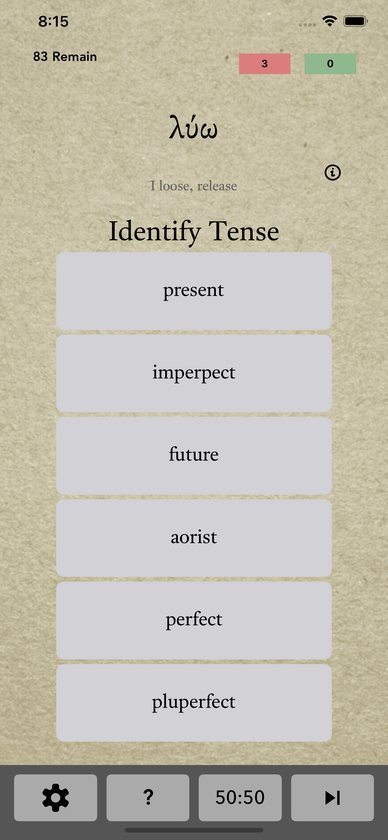
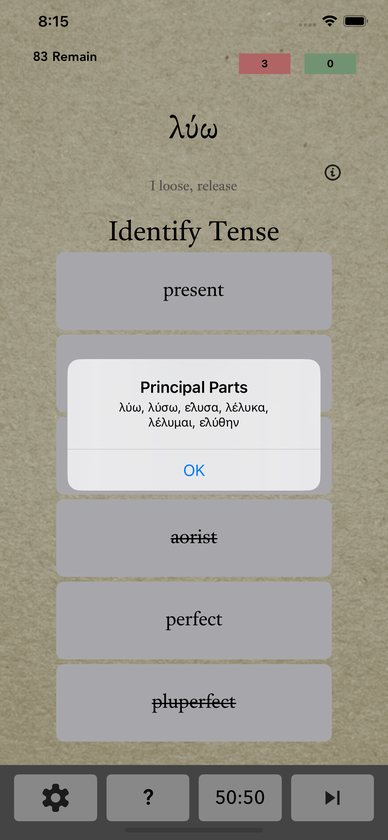
The Greek form is at the top with its gloss in grey underneath. The top left shows how many forms remain, and the top right shows your running counts of correct and incorrect answers.
The prompt, for example Identify Tense, sits above a column of large answer buttons. Tap your answer and the next prompt appears. ParseGreek asks only for the parts that apply:
- finite verbs: tense, voice, mood, person and number;
- infinitives: tense, voice and mood;
- participles: tense, voice and mood, then case, gender and number;
- nouns, adjectives and pronouns: case, gender and number.
The questions follow your own answers, so if you choose participle as the mood, the next questions ask for case, gender and number. Each answer you give appears in a row of boxes under the word. Tap any box to go back and change that answer.
The buttons along the bottom:
- Info (i) gives a hint for the word, such as “contract”, “2 aorist” or “lexical middle”, and its principal parts where they’re available.
- ? opens the paradigm sheet: declension endings, indicative verb endings and formation, subjunctive and imperative endings, and participle and infinitive formation.
- 50:50 crosses out some of the wrong answers for the current question.
- Skip shows the correct parsing without answering. A skipped form counts as incorrect.
- Gear leaves the quiz and returns to the settings screen.
Identical forms
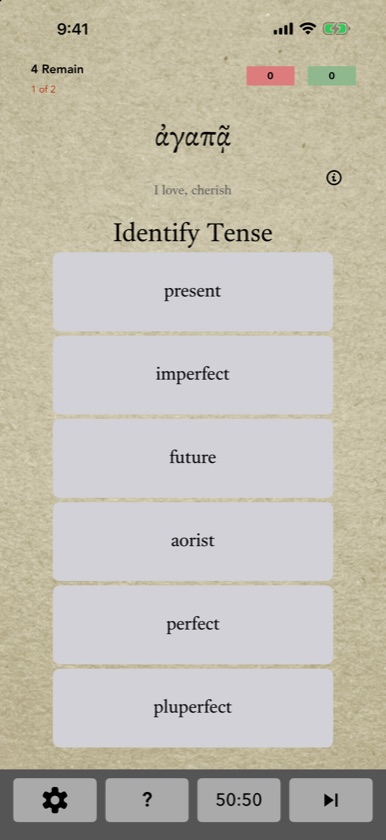
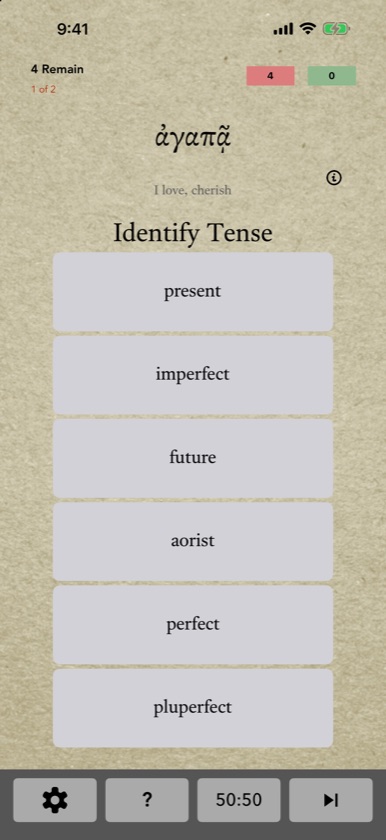
Some Greek spellings have more than one correct parsing. A form may be middle or passive, or nominative or accusative. ParseGreek keeps these together and shows “1 of 2” (or “1 of 3”) in the corner. Your first answer is accepted if it matches any of the possible parsings, and then you’re asked for the other one. If your first answer matches none of them, the whole group is marked incorrect and the quiz moves on.
Results and scoring
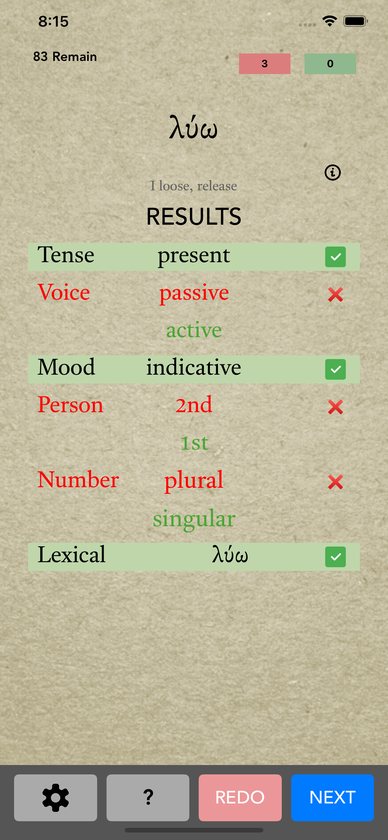
When you’ve answered every part, the RESULTS panel lists each part with your answer, a green tick or a red cross, and the correct answer under any mistake. Parts that don’t apply to the form show “Not applicable”.
- NEXT records the result and moves on. A form counts as correct only if every part is right.
- REDO lets you try the same form again without it counting.
Each form you get completely right adds one to that form’s correct count. The counts are kept on your device and are what Exclude Forms if answered correctly uses. At the end of the quiz a card shows your score out of the total.
Working on your mistakes
The results panel is where the learning happens, so take a moment with each red cross before you tap NEXT. A few settings help you go back over what you missed:
- Turn on Repeat Incorrect Answers so every form you miss comes back at the end of the quiz.
- Set Require Correct Answers to 2 or 3 to see each form more than once.
- Once you’re doing well with a set of chapters, type a number in Exclude Forms if answered correctly so the quiz keeps only the forms you haven’t yet mastered.
- Use REDO to try a form again straight away, before you move on.
Using ParseGreek in Spanish
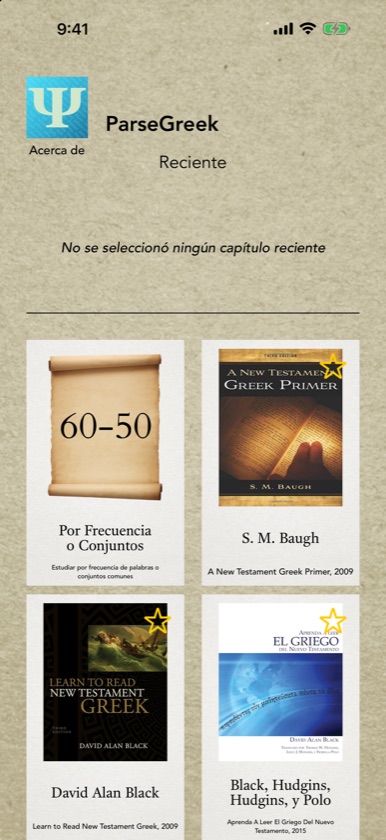
ParseGreek follows your device’s language. If your iPhone, iPad or Android device is set to Spanish, the screens, glosses and splash screen appear in Spanish. Otherwise ParseGreek uses English. To switch, change your device’s language.
The three Spanish-language grammars are in the textbook list whichever language you use.
Purchases and restoring
- ParseGreek is a one-time purchase on the App Store and Google Play. To install it on another device, download it again while signed in with the same Apple ID or Google account. You won’t be charged twice.
- ParseGreek LITE unlocks with a one-time in-app purchase. When the Unlock ParseGreek screen appears, tap the price button and confirm with Apple or Google. You’ll see “In App Purchase Successful” and the limit is removed. The banner on the By Frequency or Sets screen also shows the unlock price.
- Restoring the LITE unlock. On a new device or after reinstalling, open the unlock screen and tap Restore Purchase, signed in with the account you bought with.
- The App Store and Google Play are separate. A purchase on one doesn’t carry over to the other.
Common questions
Do I need an internet connection?
No. All the forms, glosses and paradigms are inside the app.
Do I need an account?
No. ParseGreek has no sign-in.
My textbook isn’t listed. Can I still use ParseGreek?
Yes. Use By Frequency or Sets, then narrow by word type and verb type. You’re also welcome to email Danny and suggest a textbook.
Is ParseGreek connected to these textbooks’ publishers?
No. ParseGreek follows each grammar’s chapter order so you can use it alongside the book, but it isn’t affiliated with the authors or publishers.
Where do the forms come from?
From the Greek New Testament. The only exception is the λύω set, which includes the whole paradigm of λύω for practice.
How many forms are there?
More than 9,500 inflected forms from about 845 lexical forms.
Why did the quiz show “1 of 2”?
That spelling has more than one correct parsing. See Identical forms.
Can I change an answer before I see the result?
Yes. Tap that answer in the row of boxes under the word and choose again.
Does skipping a word count against me?
Yes. Skip shows you the answer, and the form counts as incorrect.
What does “Require Correct Answers” do?
It puts each form into the quiz one, two or three times.
What does “Exclude Forms if answered correctly” count?
Every time you answer a form completely correctly, ParseGreek adds one to that form’s count on your device. The option leaves out forms whose count has reached the number you type.
Is my progress saved?
Your recent quizzes, starred textbooks and each form’s correct count are saved on your device. A quiz in progress isn’t saved if you leave it.
Does ParseGreek work on iPad and Android tablets?
Yes. The iOS app runs on iPhone and iPad, and the Android app runs on phones and tablets.
I found a wrong parsing. What should I do?
Please email Danny with the Greek form, what the app expected and, if you can, a screenshot. Corrections like these make the app better for everyone.
Troubleshooting
- I unlocked LITE, but it’s asking me to pay again. Open the unlock screen and tap Restore Purchase while signed in with the Apple ID or Google account you bought with. Check that you’re in ParseGreek LITE and not the separate full app.
- I got a new phone. For ParseGreek, download it again from your purchase history. For LITE, install it and tap Restore Purchase. Your recent quizzes, stars and correct counts are stored on your old device, so they may not come with you.
- How do I reset my progress? There’s no reset button. Deleting and reinstalling the app clears your recent quizzes, stars and correct counts. ParseGreek reinstalls free, and LITE can be unlocked again with Restore Purchase.
- My form count is lower than I expected. Check Exclude Forms if answered correctly under More Options, since a number there removes forms you’ve already got right. Also check the word type and verb type, and remember that choosing both vocabulary and grammar chapters keeps only the forms that match both.
- “Please select at least one chapter” or “Please make a selection”. Choose at least one chapter, or a frequency range or set, before tapping NEXT.
- “Please choose at least one word to continue”. Your settings left no forms. Set Word Type and Verb Type back to All, or clear the Exclude field.
- The LITE quiz closed and the unlock screen appeared. That’s the LITE limit. Unlock ParseGreek to keep going.
- A correction I reported hasn’t appeared. Make sure you have the latest version from the store. Deleting and reinstalling the app loads the newest word list, but it also clears your saved progress.
- The app crashes. Update to the latest version from the store. Crash reports are sent automatically, but an email describing what you tapped helps the bug get fixed faster.
Still stuck?
Email support@alephtoomega.com with "ParseGreek" in the subject. It helps to include your device model, its iOS or Android version, and what you were doing when the problem happened.