FlashHebrew is a flashcard app for the vocabulary of the Hebrew Bible. It knows the chapter lists of eleven introductory grammars, and it gives each word the meaning your textbook gives it. Every word comes with its root, frequency and part of speech, and most have a picture mnemonic, a recording and a verse from the Bible with the Hebrew word set into the English.
There are two ways to study, and most students use both:
- Study a set of words straight through, marking each one Correct or Incorrect. Use this to learn a chapter before a quiz.
- Smart Study decides which words you see each day, showing each one again just before you’d forget it. Use this to keep every chapter you’ve learned.
This guide shows FlashHebrew on iPhone. The iPad version works the same way, with a wider layout, and so does the Android version, apart from a few differences listed under On Android.
Getting started
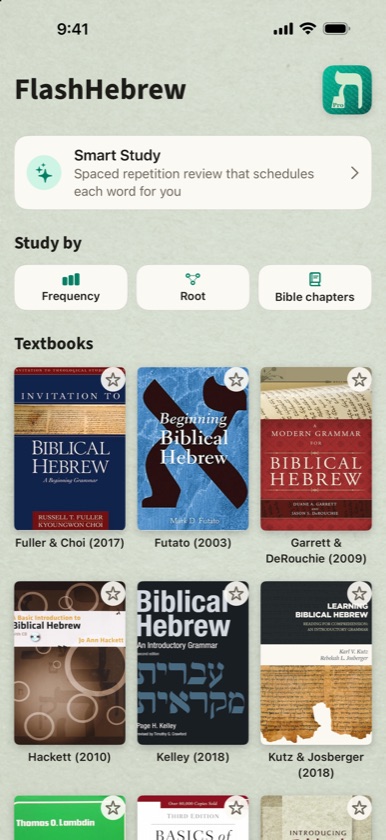
- Open FlashHebrew. There’s no account to create, and everything works offline.
- Choose what to study:
- your textbook, from the covers under Textbooks;
- Frequency, Root or Bible chapters, under Study by.
- Tap the chapters (or roots, or frequency range) you want.
- Tap Study to go through the cards now, or Add to Smart Study to have FlashHebrew schedule them for you.
The first time you open the app, the home screen shows only these choices. Once you’ve studied, it also shows your Smart Study progress and the selections you used most recently.
The home screen
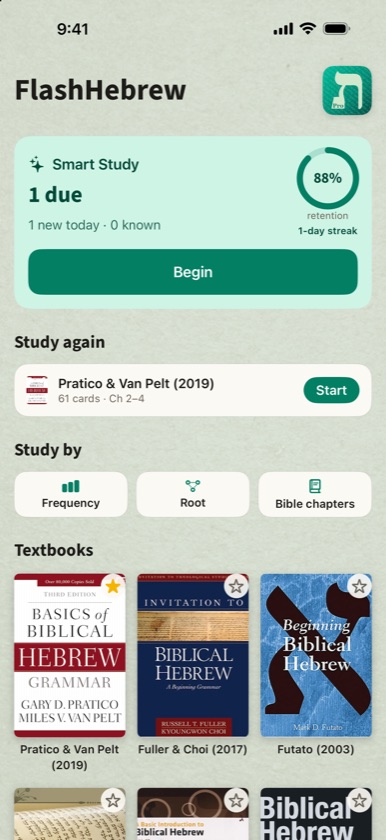
- Smart Study is at the top. Once you’ve added words, it shows how many cards are due today, how many are new, and a Begin button. The ring shows your retention: the share of your Smart Study reviews in the last 30 days that you didn’t rate Again. Underneath it is your streak, the number of days in a row you’ve reviewed.
- Study again lists your last three selections, such as “Pratico & Van Pelt (2019), 61 cards · Ch 2–4”. Tap Start to study that selection again with the same settings.
- Study by opens the Frequency, Root and Bible chapters pages.
- Textbooks shows each grammar’s cover with its authors and year. Tap the star on a cover to move that textbook to the front of the list. Tap it again to put it back.
- Tap the app icon in the top corner for About, Restore Purchases and the other AlephToOmega apps.
Studying a textbook
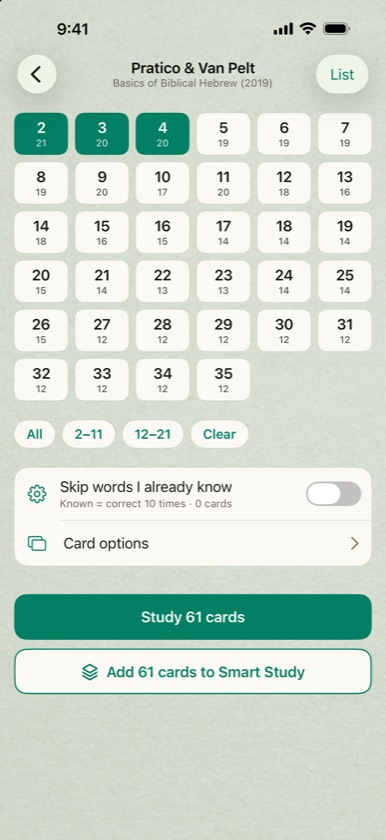
Tap your textbook’s cover. Each tile is one chapter’s vocabulary, with the chapter number and the number of words in it.
- Tap a chapter to select it, and tap again to deselect it.
- Press and hold, then drag across tiles to select several at once.
- The buttons under the grid select All chapters, the first ten or the next ten, or Clear the selection.
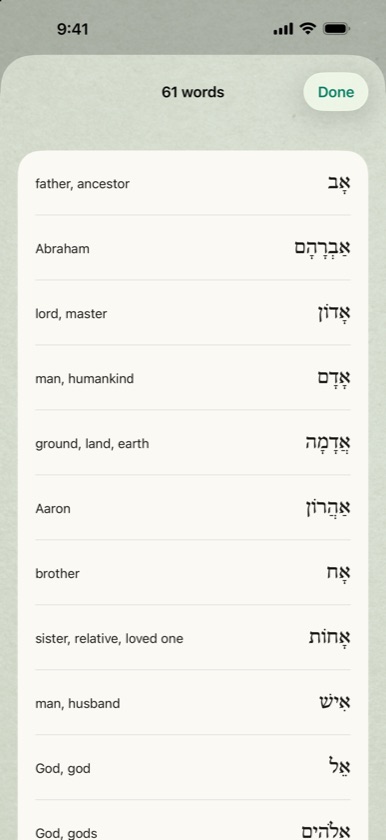
- List (top right) shows every word in your selection with the meaning your textbook gives it.
Some grammars number their lists in their own way, and FlashHebrew follows the book. Kutz & Josberger, for example, has numbered vocabulary lists and lettered frequency lists alongside its chapters, and Garrett & DeRouchie has reading-vocabulary chapters.
The two buttons at the bottom show how many cards your selection holds: Study starts now, and Add to Smart Study hands the words to Smart Study (see Adding words to Smart Study).
Why does the meaning differ from my friend’s? Each grammar glosses words a little differently. FlashHebrew shows the meaning from the textbook you’re studying. When you study by Frequency, Root or Bible chapter, it shows a general meaning instead.
Studying by frequency
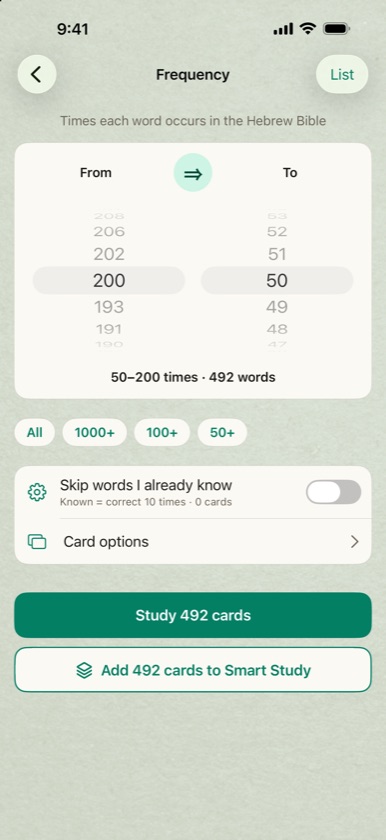
The Frequency page selects words by how many times they occur in the Hebrew Bible.
- Spin the From and To wheels to set a range. The line under the wheels shows the range and how many words it holds, such as “50–200 times · 492 words”.
- The ⇒ button sets To to the same number as From, so you can study a single frequency.
- The shortcuts All, 1000+, 100+ and 50+ jump straight to common ranges.
Working from the most frequent words down is the fastest way to read more of the Bible: just 51 words occur 1,000 times or more, and 735 occur 50 times or more.
Studying by root
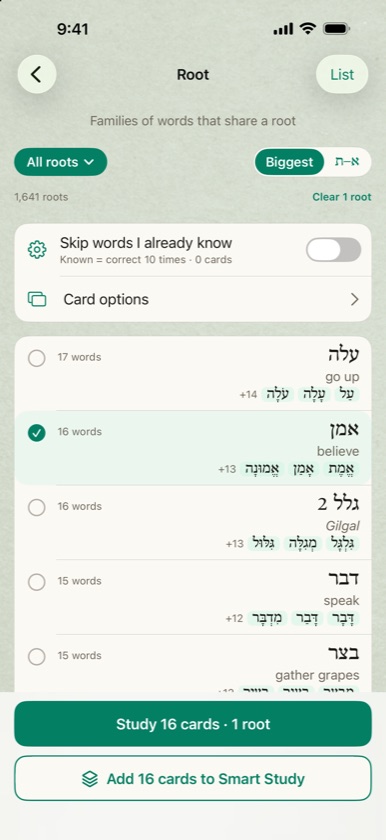
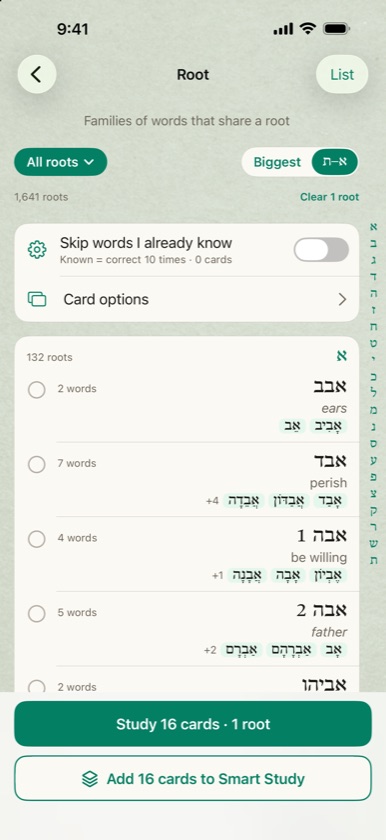
The Root page groups words into families that share a root, such as אמן believe with אֱמֶת, אָמֵן and אֱמוּנָה.
- Each row shows the root, its basic meaning, how many words it has, and the first few of them. “+13” means there are 13 more.
- Biggest lists the largest families first, and א–ת lists them alphabetically, with an index down the side to jump to a letter.
- All roots filters by family size: 3+, 4+, 5+ words and so on.
- Select one or more roots and tap Study.
Only roots shared by two or more words are listed. A meaning in italics comes from the family’s most common word, because the root has no verb of its own. When two different roots are spelled the same way, they’re numbered: גלל 1 and גלל 2.
Studying by Bible chapter
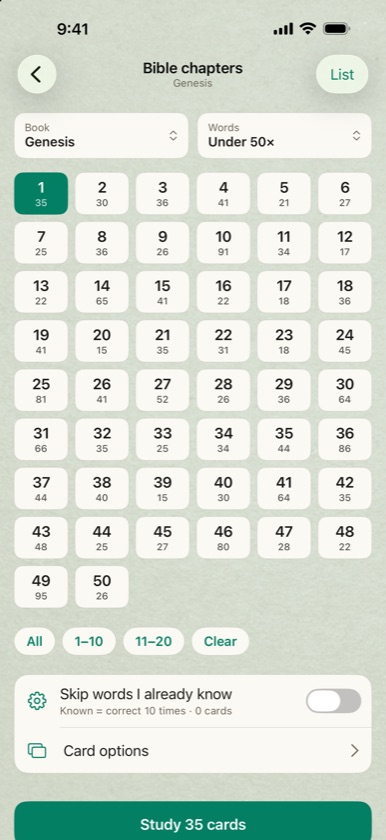
The Bible chapters page lets you learn the words of a passage before you read it.
- Choose the Book.
- Select one or more chapters. Each tile shows how many different words that chapter uses.
- Use Words to leave out the common words you already know, for example Under 50× skips every word that occurs 50 times or more. The counts on the tiles update to match.
Genesis 1 has 105 different words, for example, but only 35 of them occur fewer than 50 times in the Bible.
Skipping words you know
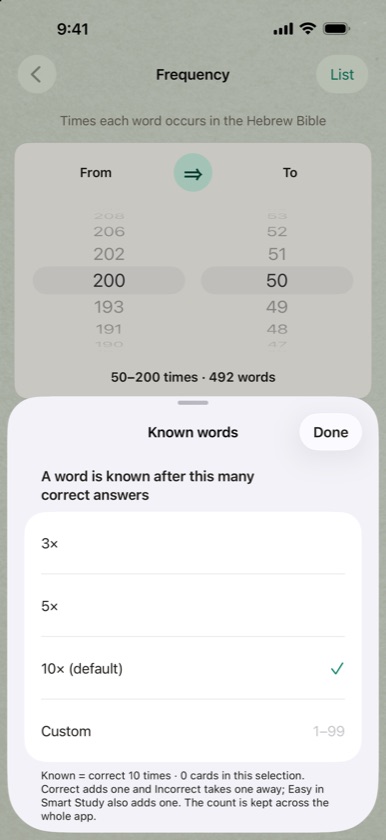
Every page has a Skip words I already know switch. When it’s on, the words you’ve already learned are left out of the selection.
A word counts as known once you’ve answered it correctly a set number of times, 10 by default. Each Correct adds one, each Incorrect takes one away, and Easy in Smart Study also adds one. Your count for a word is shared across the whole app, so learning it in one textbook counts everywhere.
Tap the gear beside the switch to change the number: 3, 5, 10 or a number of your own from 1 to 99. The line under the switch shows how many words in your current selection are known.
Card options
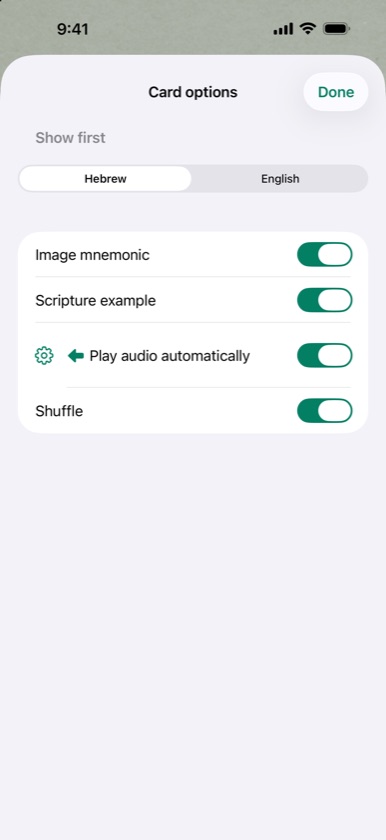
Tap Card options before you start:
- Show first: Hebrew shows the Hebrew word and asks for its meaning. English shows the meaning and asks for the Hebrew.
- Image mnemonic shows the picture and its memory sentence.
- Scripture example shows the verse.
- Play audio automatically plays each side as it appears. The gear beside it opens the Audio page.
- Shuffle puts the cards in random order.
FlashHebrew remembers your choices for next time.
Studying the cards
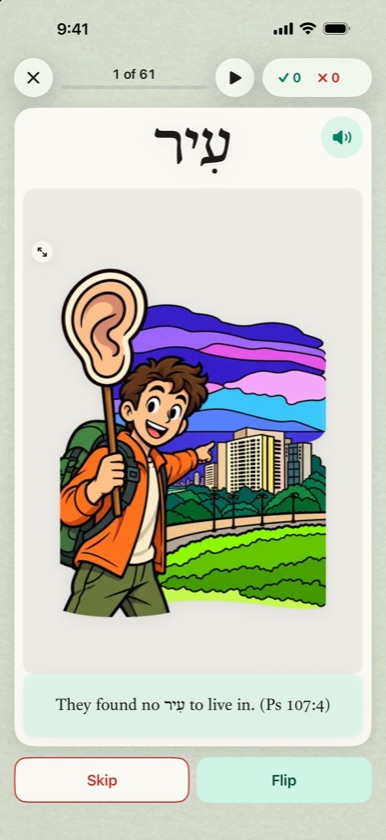
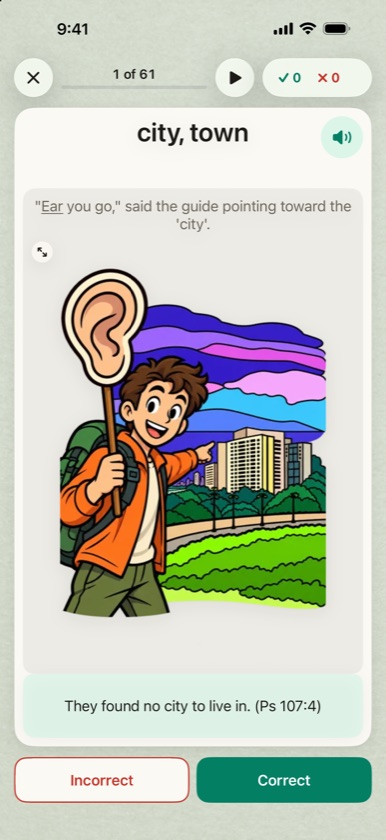
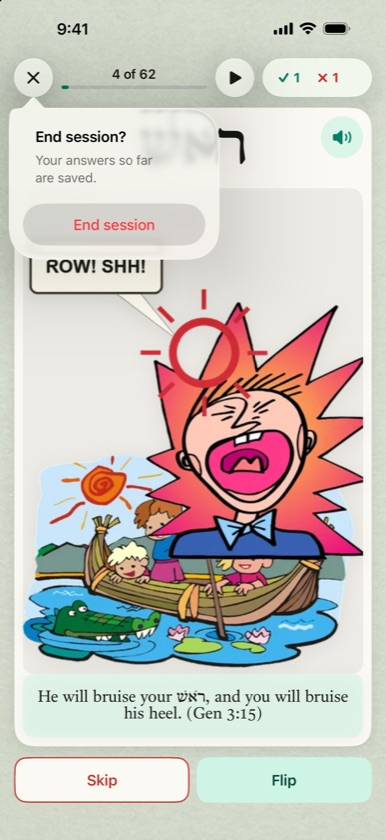
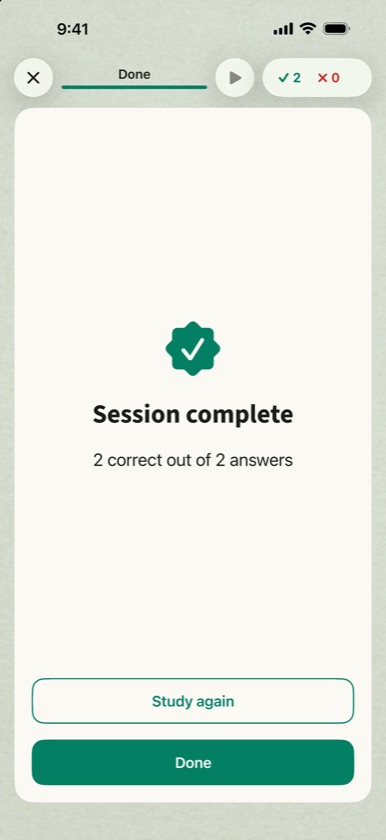
The front of the card shows the Hebrew word, its picture and a verse with the Hebrew word dropped into the English, here עִיר in “They found no עִיר to live in” (Ps 107:4). Try to recall the meaning, then tap Flip or tap the card.
The back shows the meaning, the memory sentence (the underlined word sounds like the Hebrew), and the verse in English. Mark yourself honestly:
- Correct counts toward the word being known.
- Incorrect counts against it, and the card comes back about six cards later so you get another try.
Other controls:
- Skip (on the front) moves the card to the end without counting it.
- The speaker plays the word again.
- The play button at the top starts a slideshow.
- The counter at the top right shows your correct and incorrect answers so far.
- The × ends the session. If you’ve answered at least one card, FlashHebrew asks first. Your answers so far are always kept.
At the end you see your score, with Study again to go through the same cards once more and Done to finish.
Word details
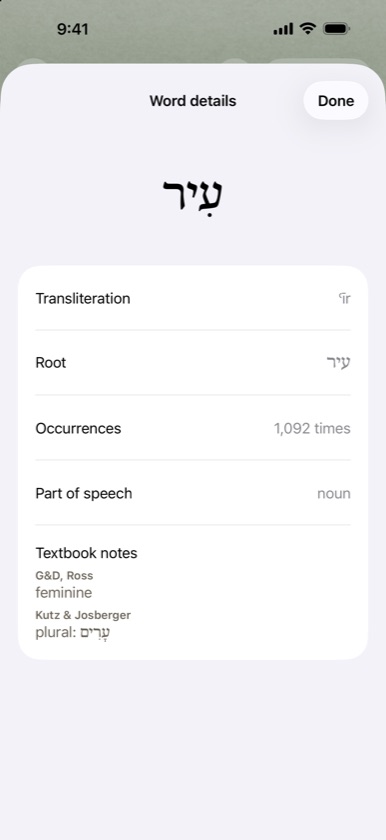
Tap the Hebrew word on any card to see more about it:
- Transliteration
- Root
- Occurrences in the Hebrew Bible
- Part of speech
- Textbook notes: the grammar notes the textbooks give, such as gender or an irregular plural, and which books give them. Here G&D and Ross note that עִיר is feminine, and Kutz & Josberger gives its plural עָרִים.
- English derivative, for words that have one
- Close homonyms: other words that sound the same or nearly the same, so you can tell them apart
Pictures and mnemonics

About a thousand of the most common words have a picture mnemonic. The picture works with the memory sentence on the back of the card, which links the sound of the Hebrew word to its meaning: עִיר (ʿîr) sounds like “ear”, so “‘Ear you go,’ said the guide pointing toward the city.”
Tap the expand button in the corner of the picture to see it full screen. Pinch or double-tap to zoom, and swipe down or tap × to close.
Slideshow
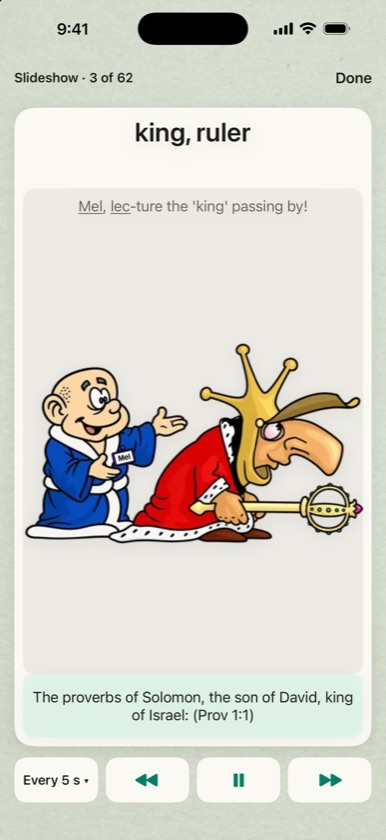
The slideshow plays your cards hands-free, which is useful on a walk or a commute. Each card shows its front and plays its audio, waits, turns to the back and plays that, then moves on, looping at the end.
- Choose how long each side stays up: every 3, 5, 8 or 12 seconds.
- Use ⏪ ⏸ ⏩ to go back, pause and skip.
- It keeps playing with the screen locked, and you can control it from the lock screen.
- Done returns you to the card you’d reached.
Nothing is marked Correct or Incorrect during a slideshow.
Audio and voices
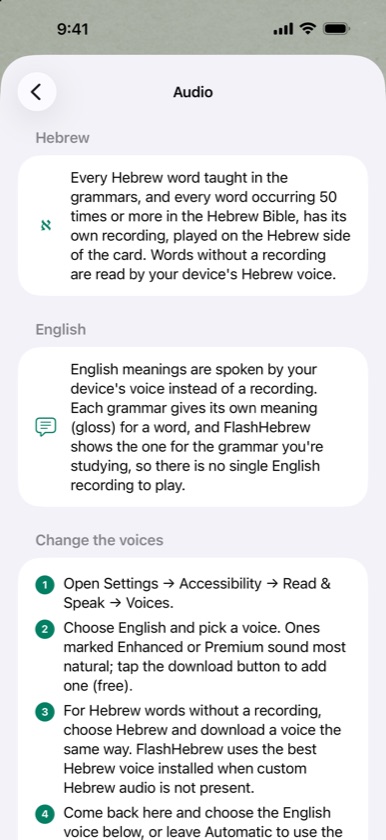
Every Hebrew word taught in the grammars, and every word that occurs 50 times or more in the Hebrew Bible, has its own recording of the Hebrew. For the rarer words without one, your device’s Hebrew voice reads the word.
English meanings are read by your device’s English voice. Each grammar glosses words differently, so there’s no single English recording to play.
For the best sound, download the better voices (they’re free):
- Open Settings → Accessibility → Read & Speak → Voices. On iOS 18 and earlier, Read & Speak is called Spoken Content.
- Choose English and download a voice marked Enhanced or Premium.
- Choose Hebrew and download a voice the same way. FlashHebrew uses the best Hebrew voice installed whenever a word has no recording.
- Back in FlashHebrew, choose your English voice on the Audio page, or leave it on Automatic to use the best one installed.
To open the Audio page, tap the gear beside Play audio automatically in Card options.
Smart Study
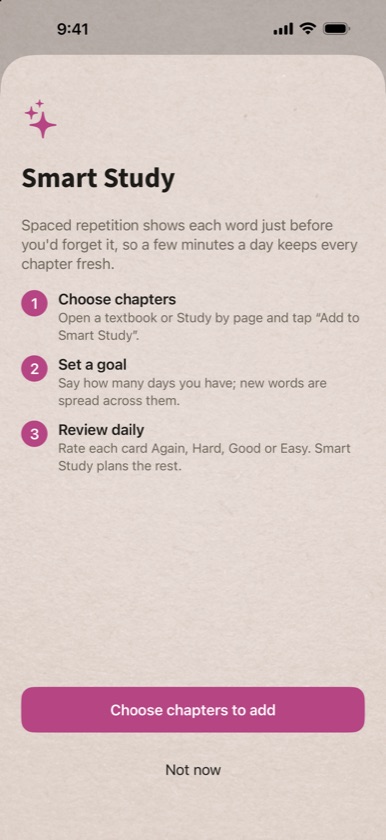
Smart Study is spaced repetition. You tell it which words to learn and by when, and it decides what to show you each day: a few new words, plus the ones you’re about to forget. A few minutes a day keeps every chapter you’ve learned fresh.
The first time you open it, Smart Study explains the three steps: choose chapters, set a goal, review daily.
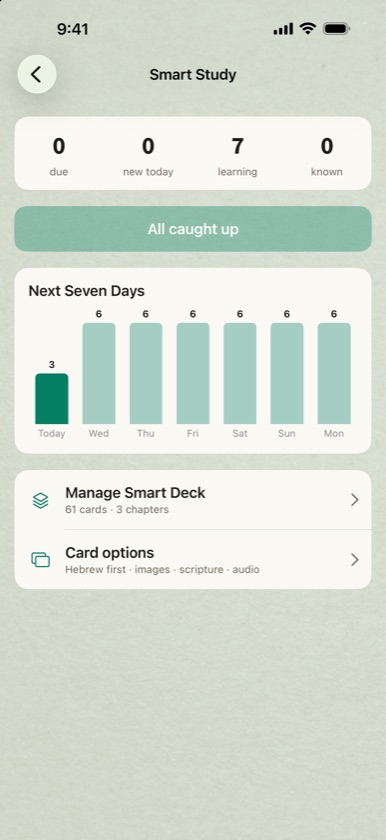
Once it’s running, the Smart Study page shows:
- due: cards to review now;
- new today: new words introduced today;
- learning: words you’re still learning;
- known: words whose next review is three weeks or more away, or that you’ve marked as known;
- Next Seven Days: how many cards are coming up each day, so you can plan ahead;
- Begin, or All caught up when nothing is due.
Do I need more than one session a day? No. One session a day is enough. When you’re learning a lot of new words quickly, though, a second short session later in the day helps them stick. Words you’ve just learned come back after a few minutes, and today’s bar in Next Seven Days counts them. If you don’t come back until tomorrow, they’re simply waiting with your other reviews.
Adding words to Smart Study
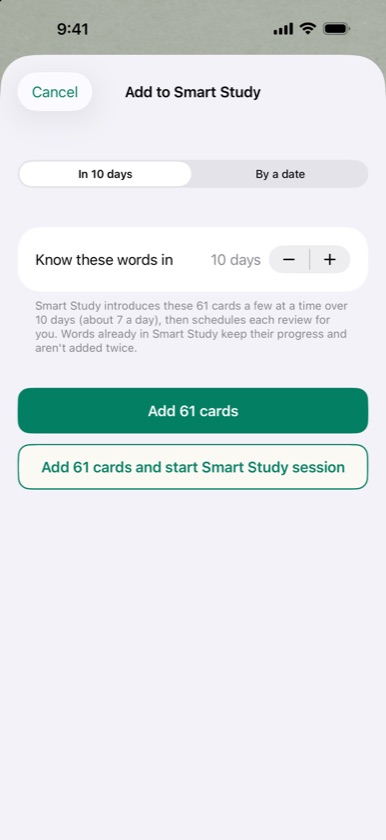
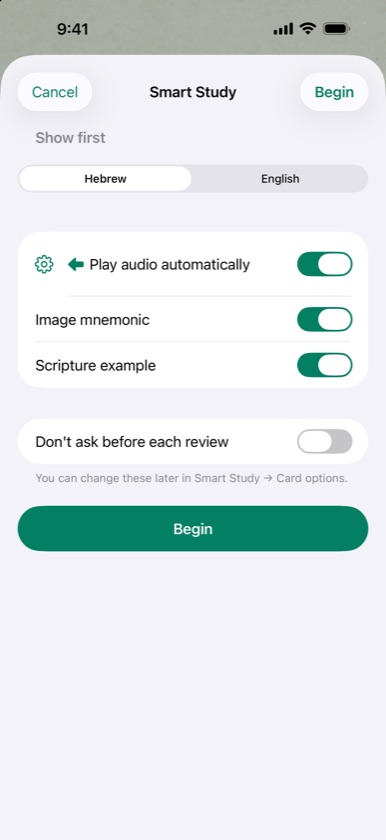
Select chapters, roots, a frequency range or Bible chapters on any page, then tap Add to Smart Study.
- Choose In N days and use − + to set how many days you have, or By a date to pick a date, such as your exam.
- Smart Study spreads the new words evenly over that time. The note under the setting says how many you’ll get a day, for example “about 7 a day” for 61 words over 10 days. If you miss a day, the remaining days take a few more words each, so you still finish on time.
- Add adds the words. Add and start Smart Study session adds them and starts today’s session straight away.
Words already in Smart Study keep their progress and aren’t added twice, so you can add each new chapter as your class reaches it.
Before each session, Smart Study asks which side to show first and whether to play audio and show pictures and verses. Turn on Don’t ask before each review to skip this step. You can still change the settings under Card options on the Smart Study page.
Reviewing with Smart Study
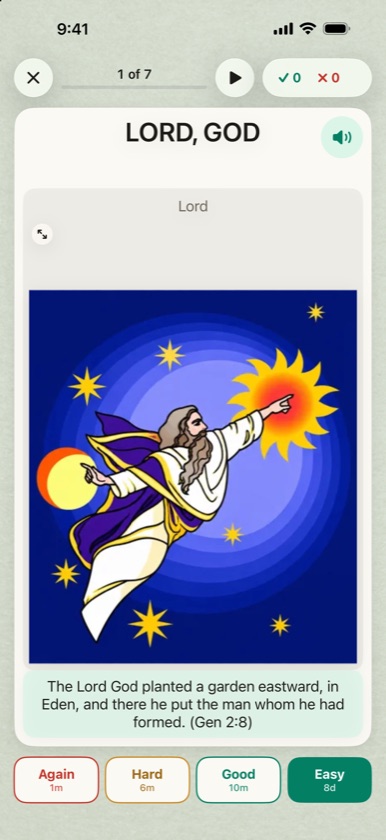
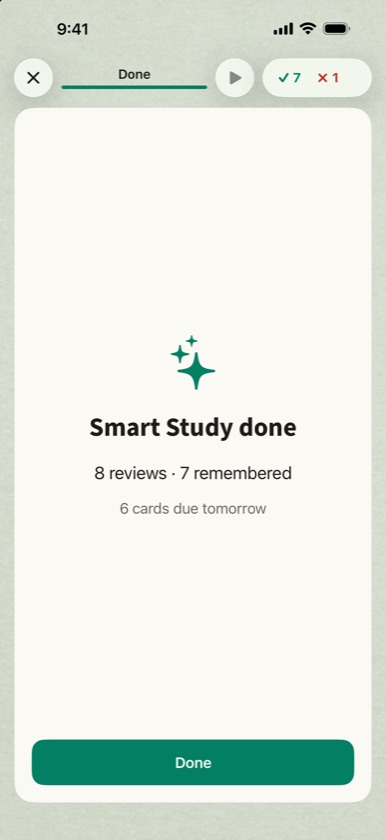
Smart Study cards work like the regular ones, but instead of Correct and Incorrect you rate how well you knew the word:
- Again: you didn’t know it. It comes back in this session.
- Hard: you got it, but only just.
- Good: you knew it.
- Easy: you knew it at once. It also counts toward the word being known.
Each button shows when you’ll see the card next, such as 1m, 10m or 8d. Be honest. Smart Study works best when your ratings match how well you really knew the word.
When you’ve finished, you see how many cards you reviewed, how many you remembered, and how many are due tomorrow.
Managing your Smart Study deck
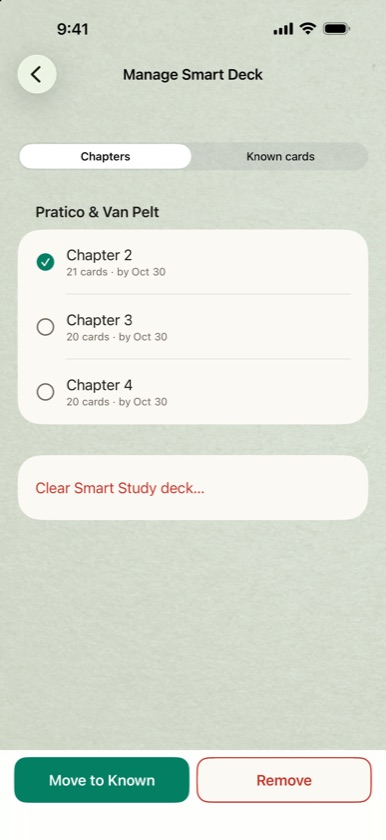
Open Manage Smart Deck from the Smart Study page.
- Chapters lists everything you’ve added, grouped by textbook, with each chapter’s card count and goal date. Select chapters, then choose Move to Known (you already know them, so they’re shown only rarely) or Remove.
- Known cards lists the words Smart Study considers known. Select some and choose Move back to learning to practise them again, or Remove.
- Clear Smart Study deck… empties the deck. Choose Clear, keep progress so that words you add again pick up where they left off, or Clear and erase progress to start over completely. Erasing removes your progress from iCloud too, on every device.
The three editions
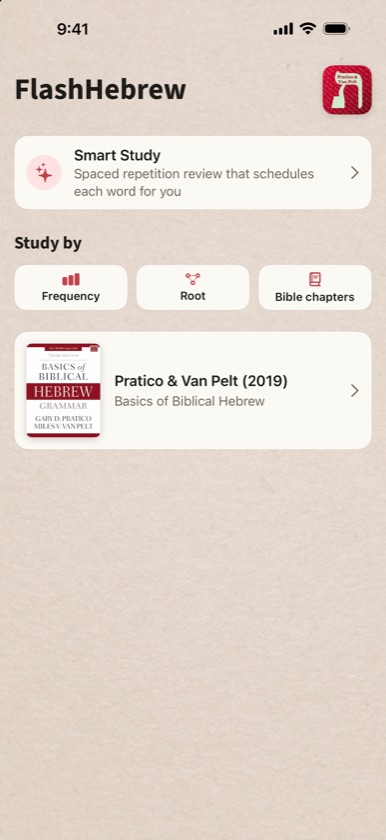
FlashHebrew comes in three editions. All three are the same app with the same cards, and each shows “FlashHebrew” under its icon.
- FlashHebrew PRO includes every textbook and every study mode, with no limits.
- FlashHebrew LITE is free to download. Every quiz shows up to 5 cards, and Smart Study holds one chapter. You can unlock everything, or just the Pratico & Van Pelt textbook, with a one-time purchase.
- FlashHebrew: Pratico & Van Pelt edition is for students using Basics of Biblical Hebrew. It includes the whole P&V textbook, with Smart Study. Frequency, Root and Bible chapters show up to 5 cards until you unlock all.
Each edition keeps its own progress. Progress isn’t shared between editions.
Unlocking LITE or Pratico
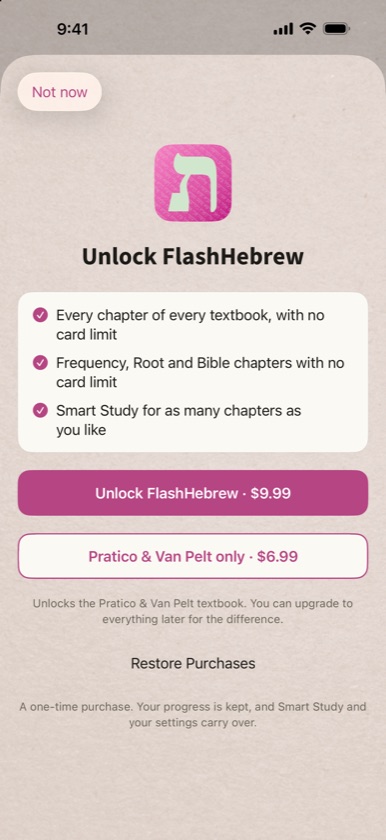
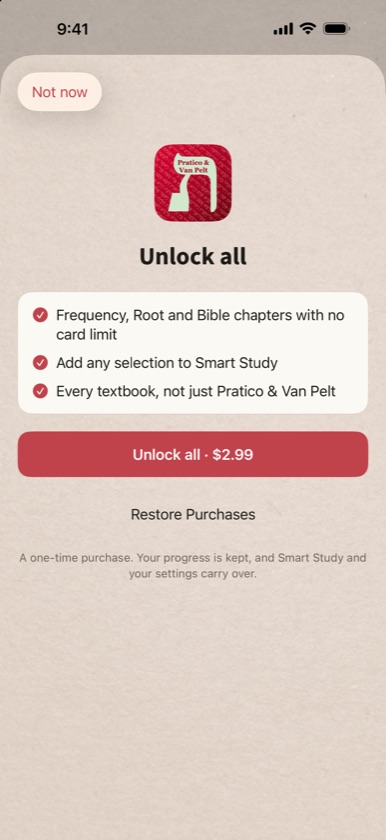
Tap any lock note, or a card limit, to see what an unlock adds.
- LITE: Unlock FlashHebrew opens everything. Pratico & Van Pelt only opens just that textbook, and you can upgrade to everything later for the difference in price.
- Pratico & Van Pelt edition: Unlock all opens Frequency, Root and Bible chapters without limits, lets you add any selection to Smart Study, and shows every textbook.
Each unlock is a one-time purchase, with no subscription and no ads. Your progress, Smart Study deck and settings stay as they are when you unlock.
Restoring purchases
Purchases belong to your Apple ID, not your device. On a new iPhone or iPad, or after reinstalling, sign in with the same Apple ID, open FlashHebrew and tap Restore Purchases. On Android, purchases belong to your Google account in the same way. It’s on the unlock screen and on the About page, which you open by tapping the app icon on the home screen.
Your progress and iCloud
FlashHebrew saves your progress on your device as you study: your Correct and Incorrect counts, your Smart Study deck and review history, and your settings. If you’re signed in to iCloud, it also keeps a copy in your private iCloud account, so:
- your progress follows you to your other iPhones and iPads;
- it comes back if you delete and reinstall the app, or move to a new device.
Nothing is lost if you’re offline or iCloud is full or off. FlashHebrew syncs again the next time it can. Only Clear and erase progress deletes your progress, everywhere.
On Android, Android’s own backup to your Google account keeps your progress instead (see On Android).
iPad and keyboards
On iPad, FlashHebrew uses the extra space: pages show two columns, and in landscape the card puts the word on one side and the picture and verse on the other. All orientations work.
With a keyboard attached, during a quiz:
| Key | Action |
|---|---|
| Space | Flip the card |
| ← / → | Skip / Flip on the front; Incorrect / Correct on the back |
| 1 2 3 4 | Again / Hard / Good / Easy in Smart Study |
| A | Play the audio |
| I | Open the picture |
| P | Start the slideshow |
| Esc or ⌘W | End the session |
In a slideshow, Space pauses and ← / → step through the cards. On chapter and root pages, Shift-click selects a range, and Return starts studying.
On Android
FlashHebrew PRO is also on Google Play. It has the same cards, study modes and Smart Study, with these differences:
- Voices come from Android’s text-to-speech settings rather than Read & Speak. To get a better English or Hebrew voice, open your device’s Settings and search for Text-to-speech, then download a voice for your speech engine.
- Your progress is kept by Android backup to your Google account rather than iCloud. If backup is turned on, it comes back when you reinstall FlashHebrew or set up a new phone. It doesn’t sync live between devices the way iCloud does.
- The slideshow keeps the screen on while it plays, rather than playing on the lock screen.
About FlashHebrew
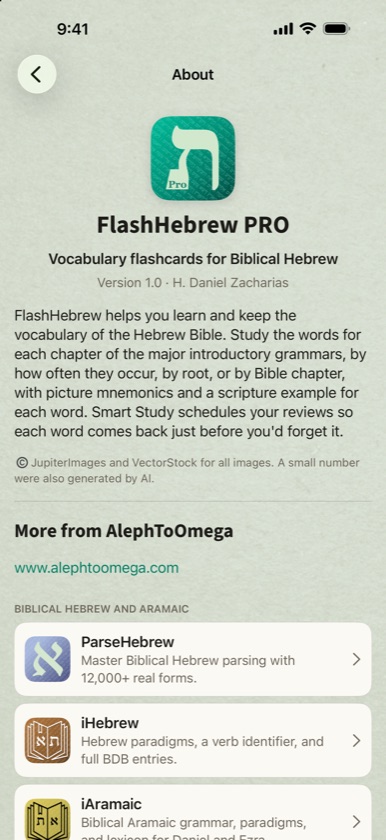
The About page (tap the app icon on the home screen) shows your edition and version, Restore Purchases, the sources behind the data, and the other AlephToOmega apps for biblical languages.
Sources. Word data, frequencies and the Bible-chapter lists come from MACULA Hebrew (Clear Bible, CC BY 4.0), and some roots from the Open Scriptures Hebrew Lexicon (CC BY 4.0). Scripture examples are from the World English Bible, which is in the public domain. Images © JupiterImages and VectorStock, with a small number generated by AI.
Questions
Why don’t I hear audio?
Check that your device isn’t on silent and its volume is up, and that Play audio automatically is on in Card options. You can also tap the speaker on the card. If English meanings sound robotic, download an Enhanced or Premium voice (Audio and voices).
Why is a word missing from a chapter, or in a different chapter than my book?
FlashHebrew follows each grammar’s own vocabulary lists, which sometimes differ from what a chapter discusses. If you find a word that’s in the wrong chapter or has the wrong meaning, please tell us.
What’s the difference between Study and Smart Study?
Study goes through a set of words once, in one sitting. Use it to learn a chapter. Smart Study spreads words over days and brings each one back at the right moment, so you remember them for good. Your Correct and Incorrect answers in Study and your Easy ratings in Smart Study both count toward a word being known.
I added a chapter to Smart Study, but only a few words appeared.
That’s how Smart Study works. It introduces new words a few at a time over the days you chose, so you’re never swamped. To get them faster, choose fewer days when you add them.
Can I move my progress from LITE to PRO?
No. Each edition keeps its own progress. Instead, unlock everything inside LITE: it becomes the full app, and your progress stays where it is.
Does FlashHebrew collect my data?
Only crash reports, which help fix bugs. They aren’t linked to you and aren’t used for tracking. Your study progress stays on your device and in your own iCloud account, or on Android in your own Google backup. See the privacy policy.
Contact
Questions, suggestions or a mistake in the content? Email support@alephtoomega.com. Include your edition (PRO, LITE or Pratico & Van Pelt), your device, and for content problems the word and the textbook chapter.