Getting started
- Open FlashGreek. The home screen shows a Recent row with your last four study sets, then a tile for each way to study: By Frequency or Root, Principal Parts Drill, By NT Chapter, and one tile per textbook.
- Tap a tile to choose your words: chapters of a textbook, a frequency range, roots or New Testament chapters.
- Tap Next. You’re now on the settings page for this quiz. Change anything you like and tap Next again.
- Study the cards. Tap Flip to see the back, then mark yourself Correct or Incorrect.
Each set you start is saved to Recent, so next time you can tap its cover on the home screen and go straight back to the same chapters.
Choosing an edition
FlashGreek comes in three editions. They’re separate apps with the same cards and the same screens.
- FlashGreek PRO has everything: every word in the Greek New Testament, all 13 textbooks and every study mode. There’s nothing more to buy.
- FlashGreek LITE is free. Every screen is there, and you can study the first two chapters of every textbook. The other study modes give you a short sample. You can upgrade to PRO inside the app, and on iPhone and iPad you can instead unlock a single textbook.
- FlashGreek: Mounce edition has every chapter of Mounce’s Basics of Biblical Greek. The home screen shows the three study modes and the Mounce tile. An optional in-app upgrade to PRO opens the study modes and adds the other 12 textbooks.
If you’ll keep studying Greek after first year, or your class uses a book other than Mounce, PRO is the one to get. If Mounce is your only book, the Mounce edition costs less. If you’re not sure, start with LITE.
Studying by textbook
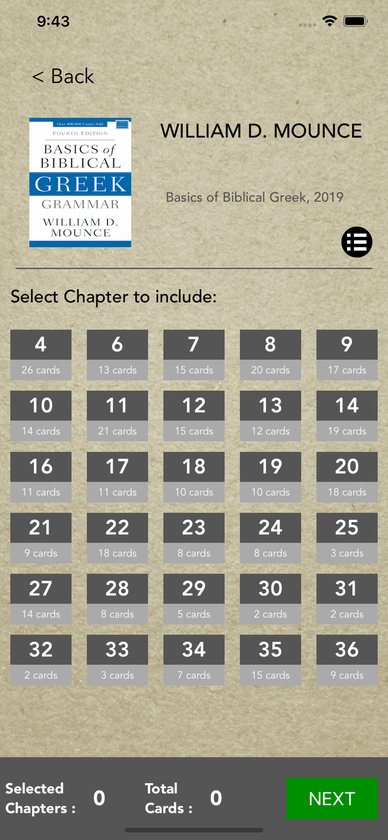
Tap your textbook’s tile. You’ll see a grid of chapter numbers, each with its card count. The numbers follow the chapters of your book, so a chapter that introduces no new vocabulary won’t appear.
- Tap a chapter to include it. It turns green. Tap it again to remove it. You can pick as many chapters as you like, so reviewing for a midterm is just a matter of tapping every chapter you’ve covered.
- The counters at the bottom show Selected Chapters and Total Cards.
- Tap the list button to see every word in your selection, Greek on the left and English on the right, before you start.
- Tap Next to go to the quiz settings.
In LITE, chapters 3 and up are shown in brown. Tapping one opens the unlock screen.
Studying by frequency or root
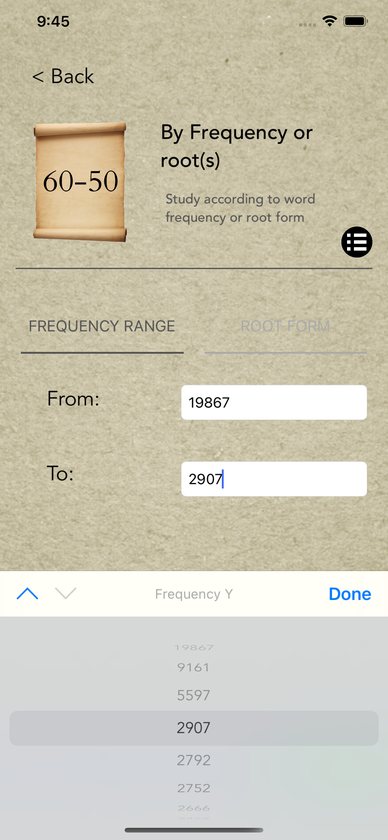
Available in PRO, and as a sample in LITE. Choose Frequency Range or Root Form at the top.
- Frequency range. Use the two dials to choose how many times a word occurs in the New Testament, from one number to another. Most first-year courses cover the words that occur 50 times or more, or 30 times or more. To study a single frequency, set both dials to the same number.
- Root form. Choose a root with the dials, first by letter and then the root itself, to study the words built on it. Seeing a family of related words together makes each one easier to hold onto. To study one root, choose the same root in both dials.
The page shows how many frequencies or roots you’ve chosen and how many cards that makes.
Principal parts drill
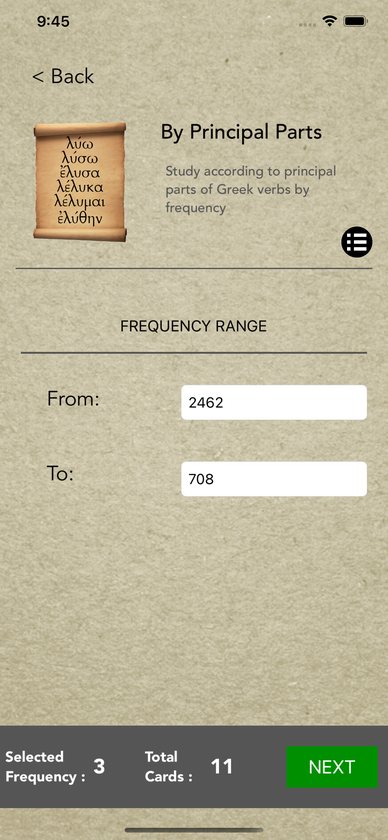
Available in PRO, and as a sample in LITE. Greek verbs can have up to six principal parts, and those are the forms you need to recognise ἦλθον as a form of ἔρχομαι. Use the dials to choose a frequency range of verbs, then tap Next. Each card shows a verb’s principal parts.
Studying by New Testament chapter
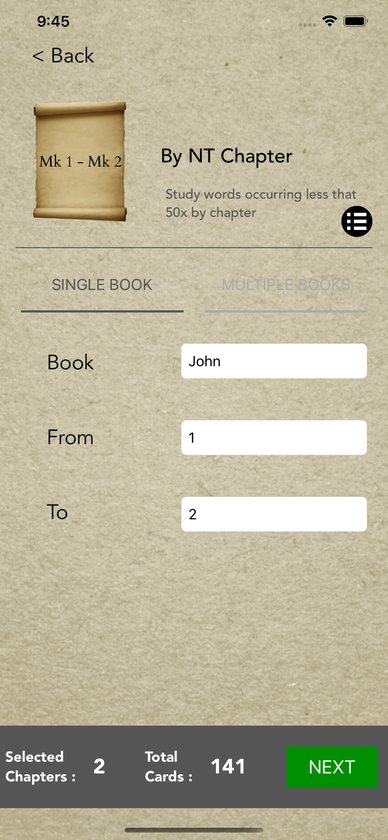
Available in PRO, and as a sample in LITE. Use this to get ready to read a passage.
- Single Book. Choose a book, then a range of chapters within it.
- Multiple Books. Choose a starting book and chapter, and an ending book and chapter.
FlashGreek gathers the less common words in those chapters, the ones a first-year vocabulary list is unlikely to have covered, so you can learn them before you sit down with the text.
Quiz settings
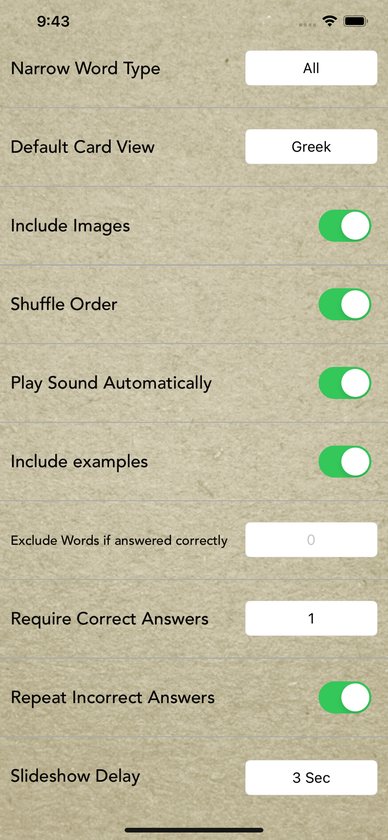
These appear after you choose your words. On iPhone, tap More Options to see the full list.
- Narrow Word Type. All, Nouns, Adjectives, Verbs or Others. The card count updates as you change it.
- Default Card View. Greek puts the Greek on the front. English puts the English on the front and the Greek on the back.
- Include Images. Shows the picture mnemonic on cards that have one.
- Shuffle Order. On by default. Turn it off to study in alphabetical order.
- Play Sound Automatically. Plays the audio when each side of the card appears. With this off you can still tap the speaker button.
- Include examples. Shows a New Testament verse that uses the word. On the front the Greek word sits inside the English sentence, and on the back the whole sentence is in English.
- Exclude Words if answered correctly. Type a number, and any word you’ve marked correct at least that many times is left out. Leave it empty to include everything.
- Require Correct Answers. 1, 2 or 3. With 2 or 3, each card is dealt that many times.
- Repeat Incorrect Answers. Cards you mark incorrect come back at the end of the quiz. On iPhone and iPad they always come back, whichever way this switch is set.
- Slideshow Delay. 3, 5 or 6 seconds between the front and the back in slideshow mode.
- Slideshow Loop. Starts the slideshow again from the top when it ends. On by default.
The cards
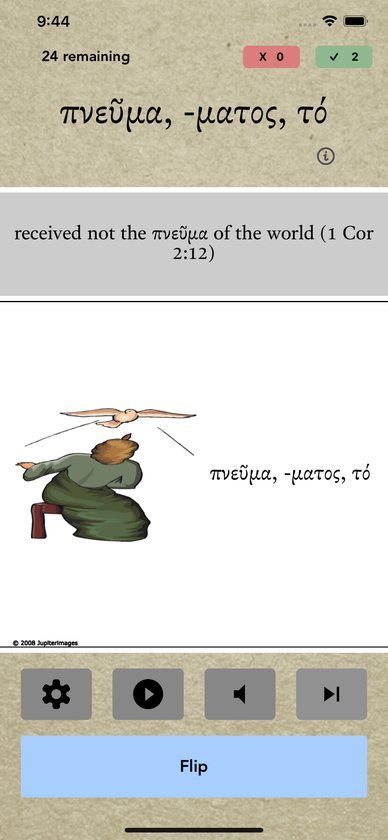
- Top left shows how many cards remain. Top right shows your incorrect and correct counts for this quiz.
- The Greek word, or the English if you reversed the cards, is at the top. Tap the i button for its part of speech and any English derivatives.
- The grey band shows the New Testament example, if examples are on.
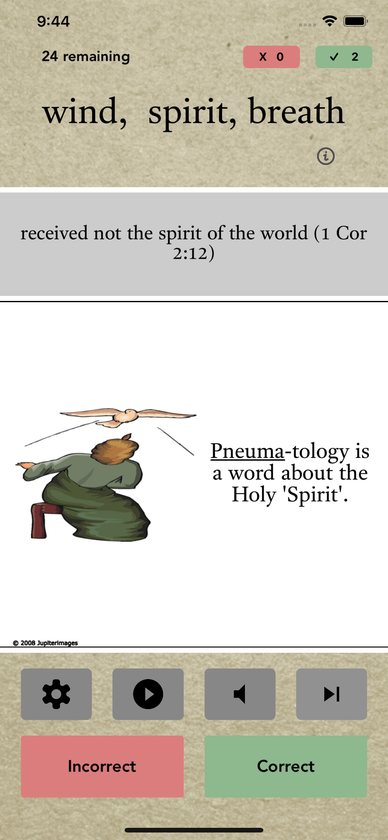
- The white panel shows the picture mnemonic, if images are on and the word has one. On the back, the memory hook appears beside the picture.
- The buttons along the bottom are settings (ends the quiz and goes back to the settings page), play (starts the slideshow), speaker (plays the audio again) and skip (moves on without marking the card).
- Tap Flip to see the back, then tap Correct or Incorrect.
When you finish, FlashGreek shows your score.
On iPad, turn the device sideways to see the card and its picture side by side.
Pictures, audio and examples
The words that occur 20 times or more in the New Testament, and some others, come with a picture mnemonic, audio for both sides of the card, and a New Testament example. Rarer words are text only. The audio uses Erasmian pronunciation.
Marking words correct
Every time you tap Correct, FlashGreek adds one to that word’s count. The count is kept on your device and carries across quizzes and study modes. Use Exclude Words if answered correctly to leave out the words you’ve already learned, and spend your time on the ones that still trip you up.
Cards you mark Incorrect are dealt again at the end of the quiz.
Slideshow mode
Tap the play button during a quiz. The cards turn over by themselves after the delay you set, with audio, and the screen stays awake while it runs. Slideshow mode doesn’t ask you to mark cards, so it ignores Require Correct Answers and Repeat Incorrect Answers. Close it with the X.
Purchases and unlocking
FlashGreek PRO has no purchases. Everything is included.
FlashGreek LITE. Tap a brown chapter, or keep going past the sample in one of the other study modes, and the unlock screen appears.
- Choose FlashGreek PRO to unlock everything.
- On iPhone and iPad you can instead unlock all the chapters of one textbook.
- Prices come from the App Store or Google Play in your own currency.
FlashGreek: Mounce edition. The frequency or root, principal parts and NT chapter screens show an Upgrade to FlashGreek PRO banner. Buying it opens those study modes and adds the other 12 textbooks to the home screen.
Restoring purchases. Purchases belong to your Apple ID or Google account, not to the device. On a new device, or after reinstalling, sign in with the same account, open the unlock screen and tap Restore. You won’t be charged again.
Moving between editions. The three editions are separate apps, and a purchase in one doesn’t carry over to another.
- If you already own LITE or the Mounce edition, the in-app upgrade is usually the cheapest way to PRO. You don’t need to buy the PRO app as well.
- Your correct-answer counts and Recent list are kept inside each app on each device, so they don’t move between editions or devices.
Common questions
Which edition should I get?
If your class uses any book other than Mounce, or you’ll keep reading Greek after first year, get PRO. If you only need Mounce’s Basics of Biblical Greek, the Mounce edition costs less and can be upgraded later. If you’re not sure, start with LITE for free.
My textbook isn’t listed. Can I still use FlashGreek?
Yes. Study by frequency. Most first-year courses teach the words that occur 50 times or more, or 30 times or more. Choose that range and you’ll cover most of what your book teaches.
Is FlashGreek an official companion to my textbook?
No. Apart from Danny’s own Biblical Greek Made Simple, FlashGreek isn’t connected with the textbooks’ authors or publishers. The decks are built to match each book’s chapter vocabulary.
A word’s meaning is different from my textbook’s.
The glosses come mainly from Accordance Bible Software, and authors sometimes gloss a word a little differently. Learn the gloss your teacher will test you on. If a word looks wrong or seems to be in the wrong chapter, please email us with the book, chapter and word so it can be fixed.
Why do some words have no picture or audio?
Pictures, audio and examples are included for the words that occur 20 times or more in the New Testament, and some others. Rarer words are text only. Some of the vocabulary for Porter, Reed and O’Donnell also has no pictures or audio.
What pronunciation does the audio use?
Erasmian.
Can I study from English to Greek?
Yes. Set Default Card View to English. Going from English to Greek is harder, and it’s good practice once the Greek-to-English direction feels easy.
How do I skip words I already know?
Type a number in Exclude Words if answered correctly. If you enter 5, any word you’ve marked correct five or more times is left out.
Where are my scores kept? How do I start fresh?
Only on your device. Deleting and reinstalling the app clears your correct-answer counts, along with your Recent list. If you just want to see every word again, leave the Exclude Words box empty.
Can I use FlashGreek while I drive or walk?
Yes. Start a slideshow with Play Sound Automatically and Slideshow Loop on, and you’ll hear both sides of every card. Please set it up before you start driving.
Do I need an internet connection or an account?
No. All the cards, pictures and audio are inside the app. You only need a connection to buy or restore a purchase.
Does it work on iPad?
Yes. On iPad, turning the device sideways shows the card and its picture side by side.
I upgraded LITE to PRO. Do I need the Mounce edition too?
No. PRO already includes Mounce’s vocabulary, along with the other 12 textbooks.
Troubleshooting
- I bought something and it isn’t unlocked. Close the unlock screen, open it again from a locked chapter or the upgrade banner, and tap Restore. That usually completes the unlock. If it still doesn’t work, email us with a screenshot and the name of your edition.
- “Please select at least one chapter.” Tap one or more chapter numbers so they turn green before you tap Next.
- “Please choose at least one word to continue.” Your settings left no cards. Set Narrow Word Type back to All, or clear the Exclude Words box.
- “No sound available for this card.” That word has no audio. Rarer words are text only.
- No sound at all. Check that your device isn’t muted and the volume is up. On iPhone, also check the silent switch.
- A LITE quiz in one of the other study modes stops after about 10 cards. That’s the free sample. Upgrade to keep going.
- Recent opens the wrong set. Recent remembers the last four sets you started. Choose the book again from its tile to make a new set.
- The app is slow to open the first time. On first launch FlashGreek copies its word list into place, which takes a moment.
- Upgrade prices are blank. The app needs to reach the App Store or Google Play to show prices. Check your connection and open the unlock screen again.
- FlashGreek doesn’t show up on my new device. Open the App Store or Google Play while signed in with the account you bought it with, and download it again from your purchase history. Then tap Restore for any in-app purchases.
- The app crashes. Update to the latest version from the store. Crash reports are sent automatically, but an email describing what you tapped helps the bug get fixed faster.
Still stuck?
Email support@alephtoomega.com with "FlashGreek" in the subject. It helps to include your device model, its iOS or Android version, and what you were doing when the problem happened.